Student Account Activities
Dashboard
Student can Show
- Total Course Purchased
- Total Service Purchased
- Total Event Ticket Booked
- Total Payment
- Transactions
My Course
Checkout (student frontend)
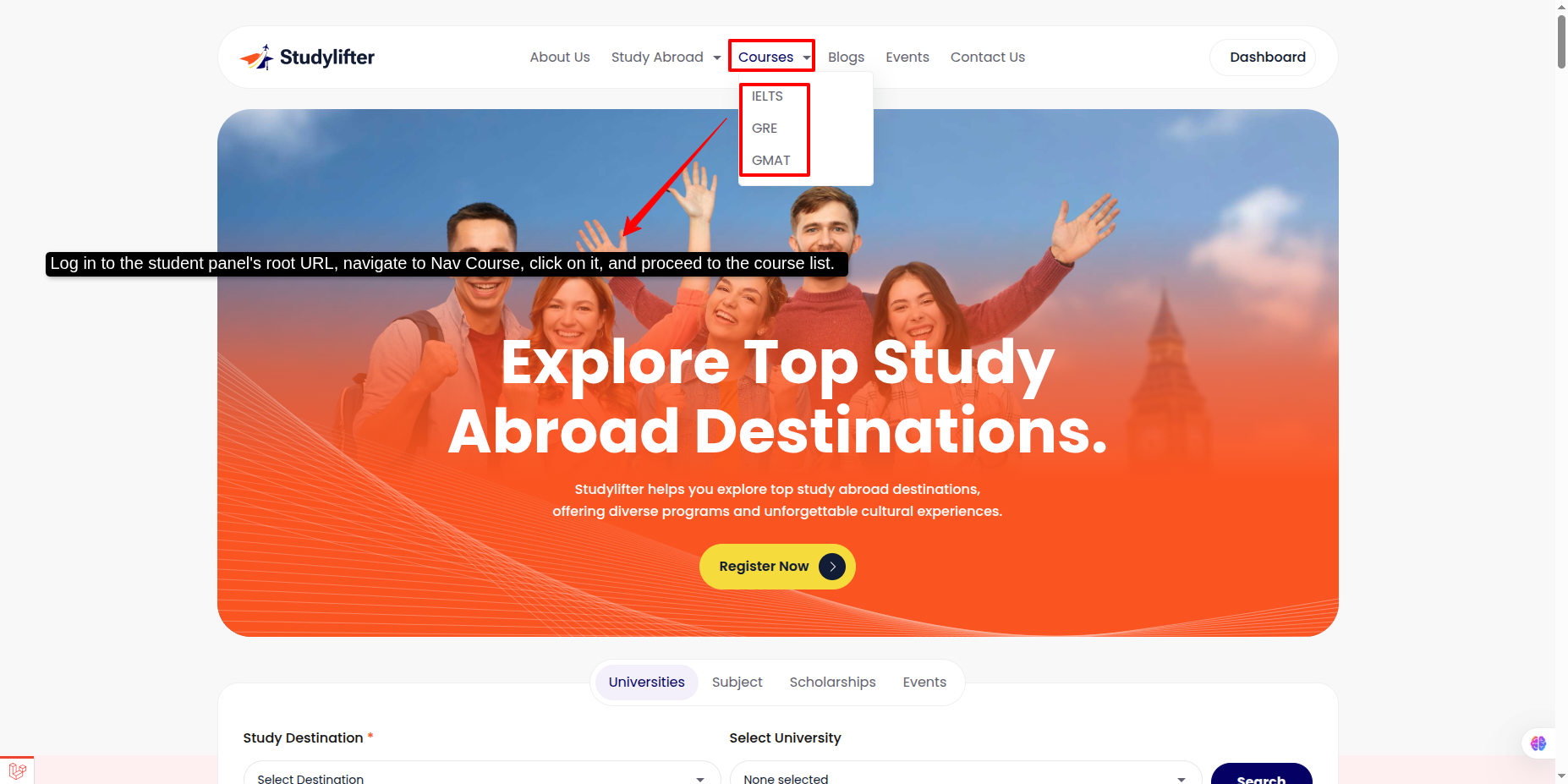
Step: 1
- Log in to the student panel's root URL, navigate to Nav Course, click on it, and proceed to the course list.
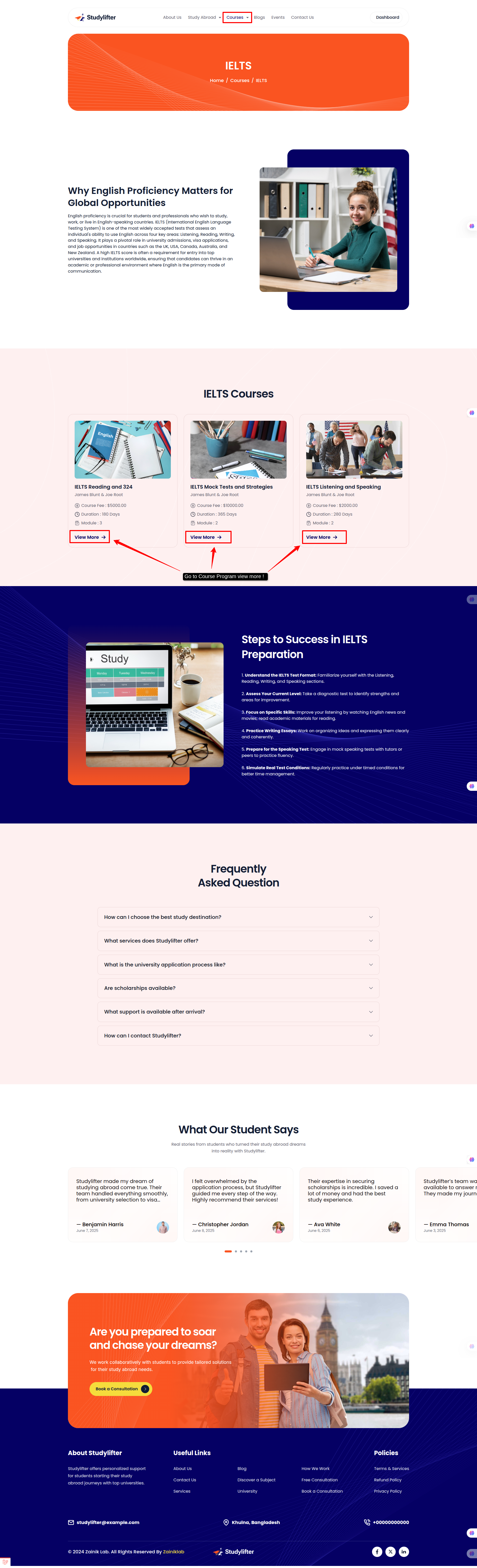
Step: 2
- Go to Course Program view more !
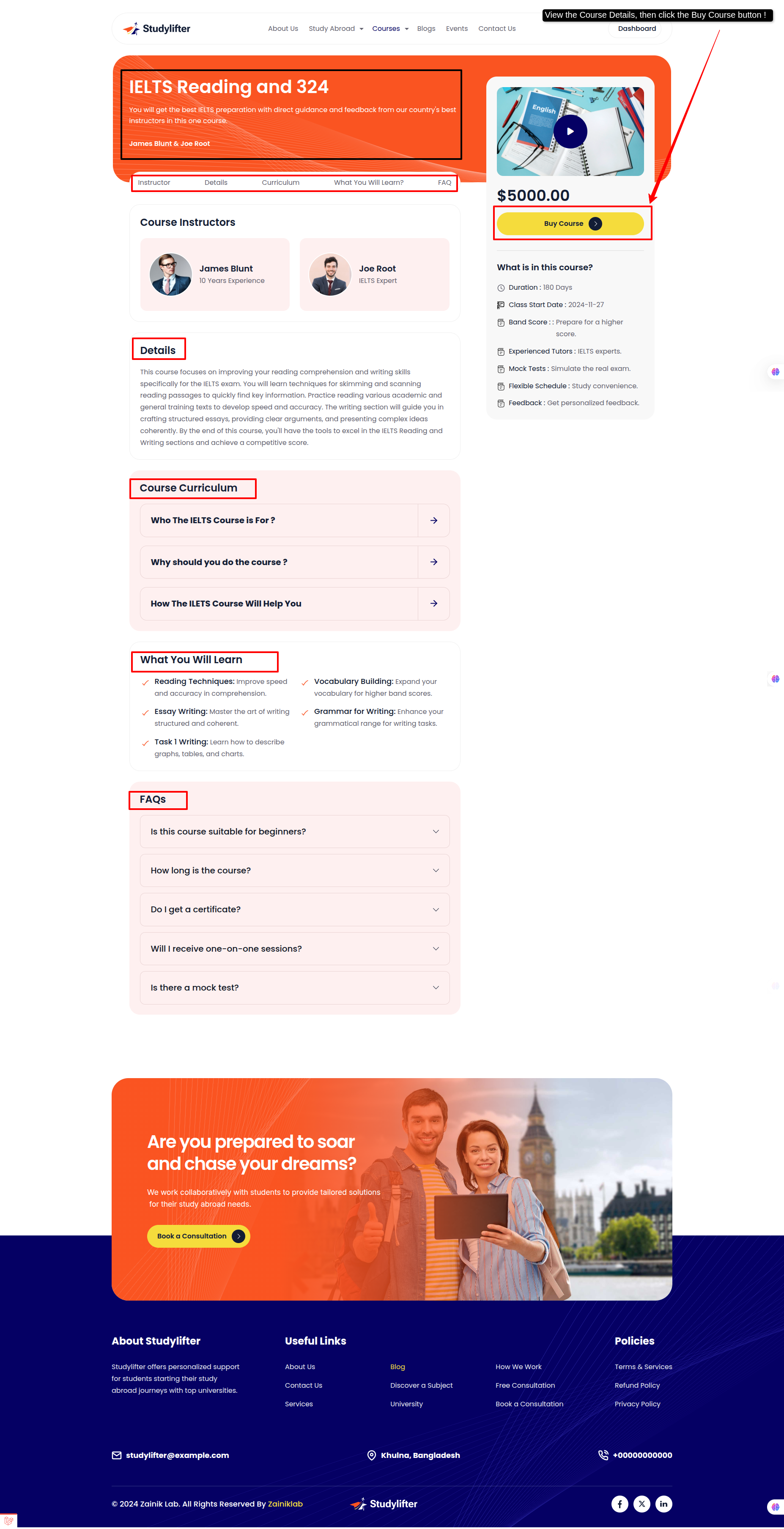
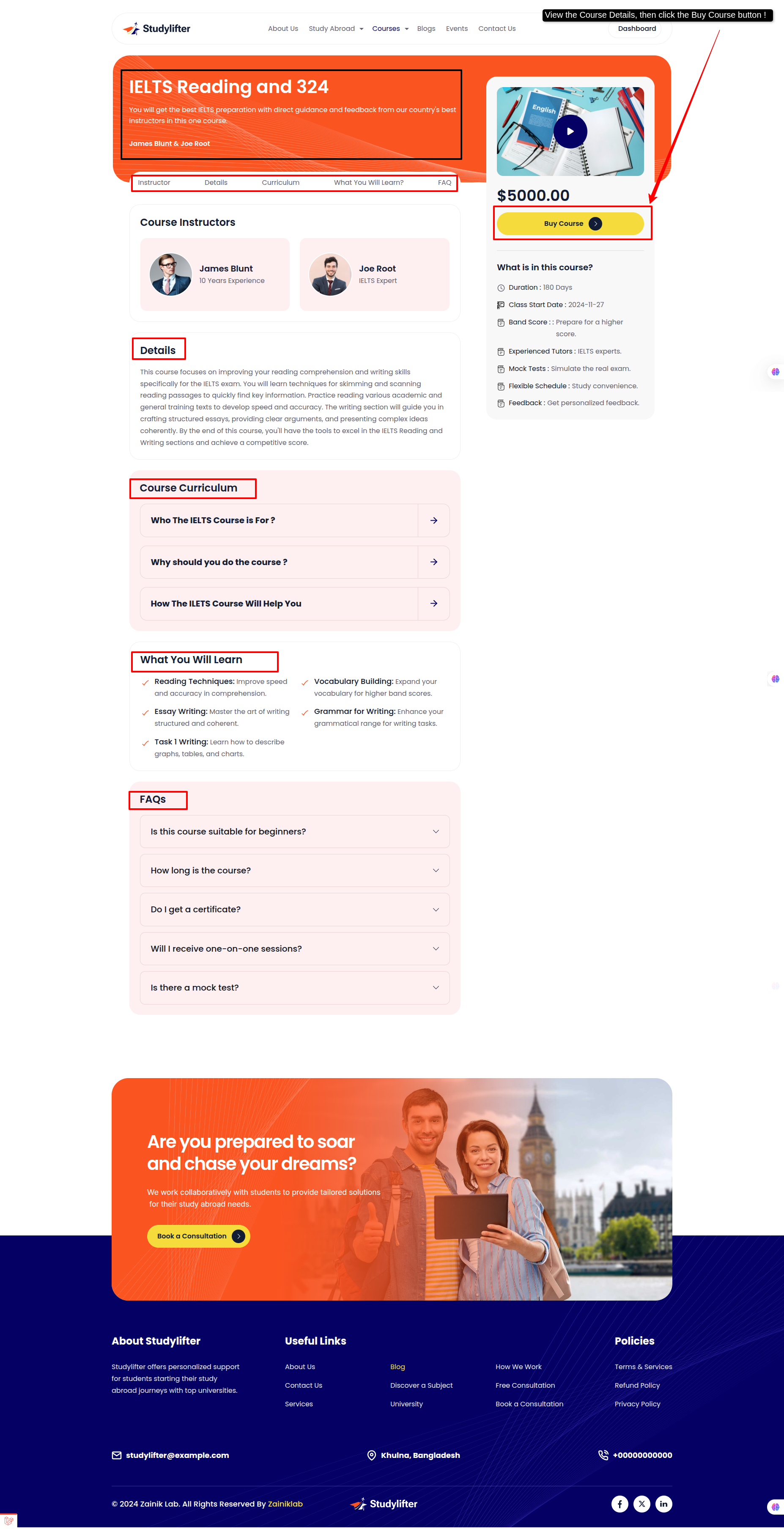
Step: 3
- View the Course Details, then click the Buy Course button !
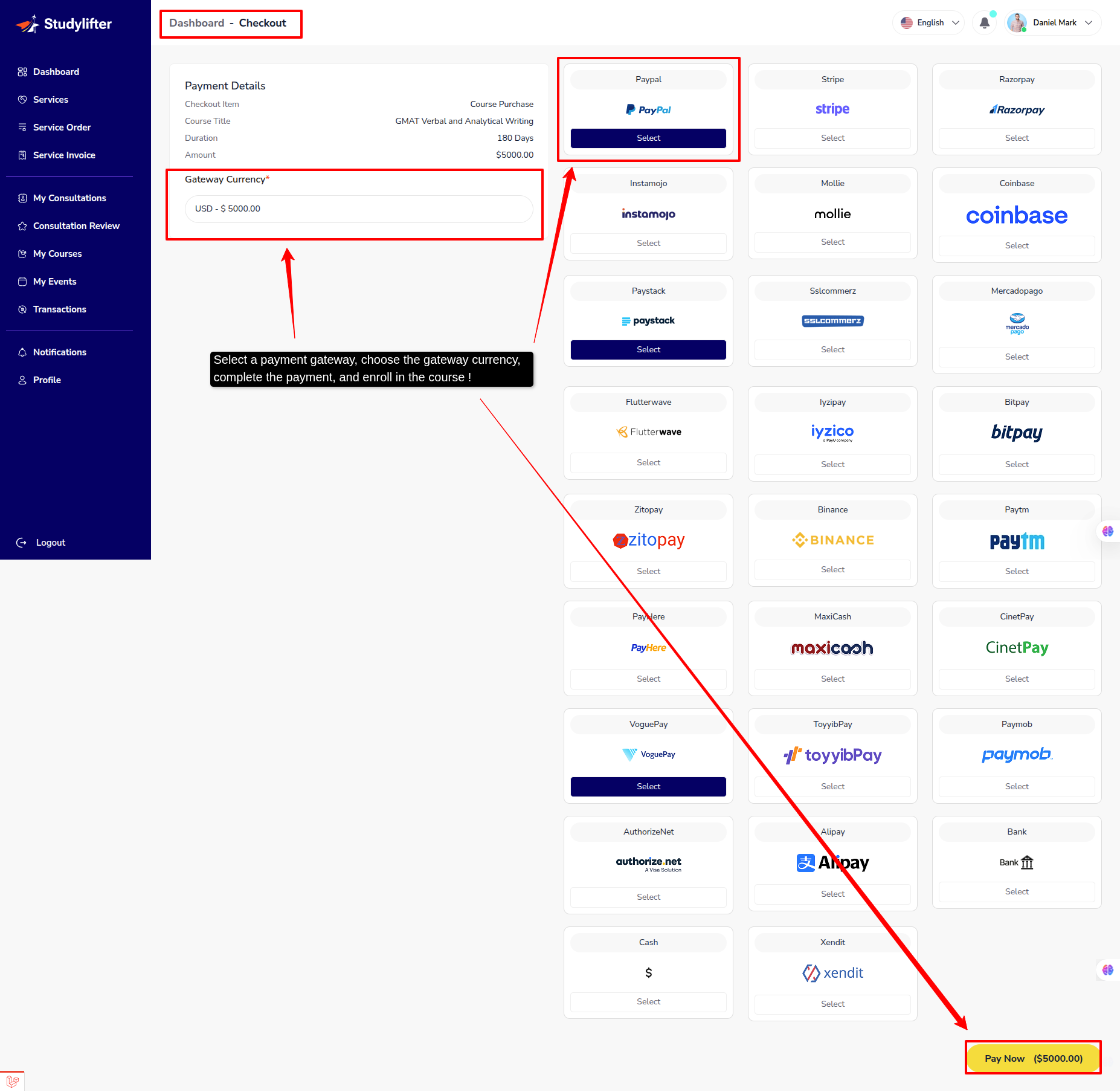
Step: 4
- Select a payment gateway, choose the gateway currency, complete the payment, and enroll in the course !
Step: 5
- Student can view all enrollment course list here.
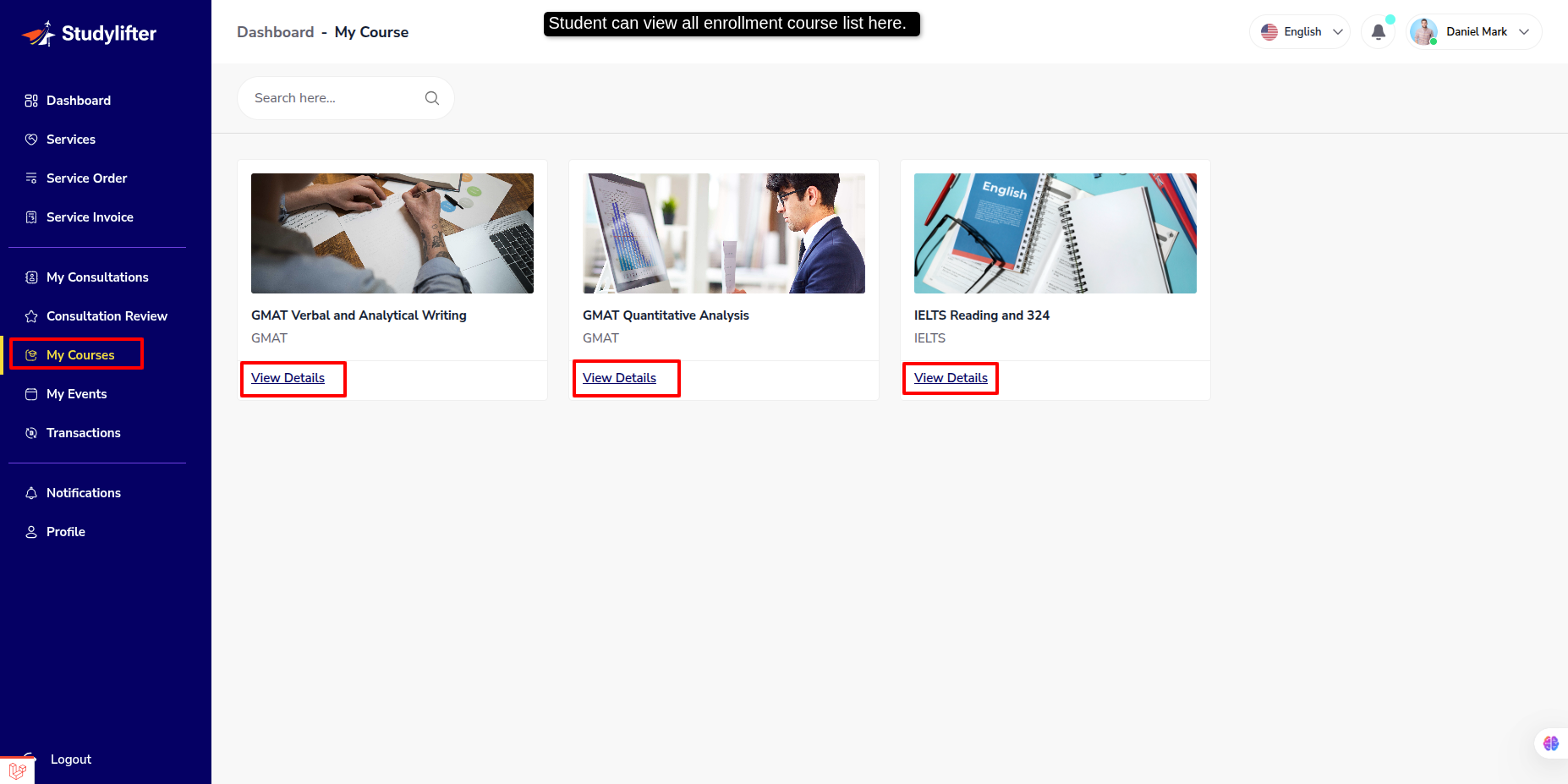
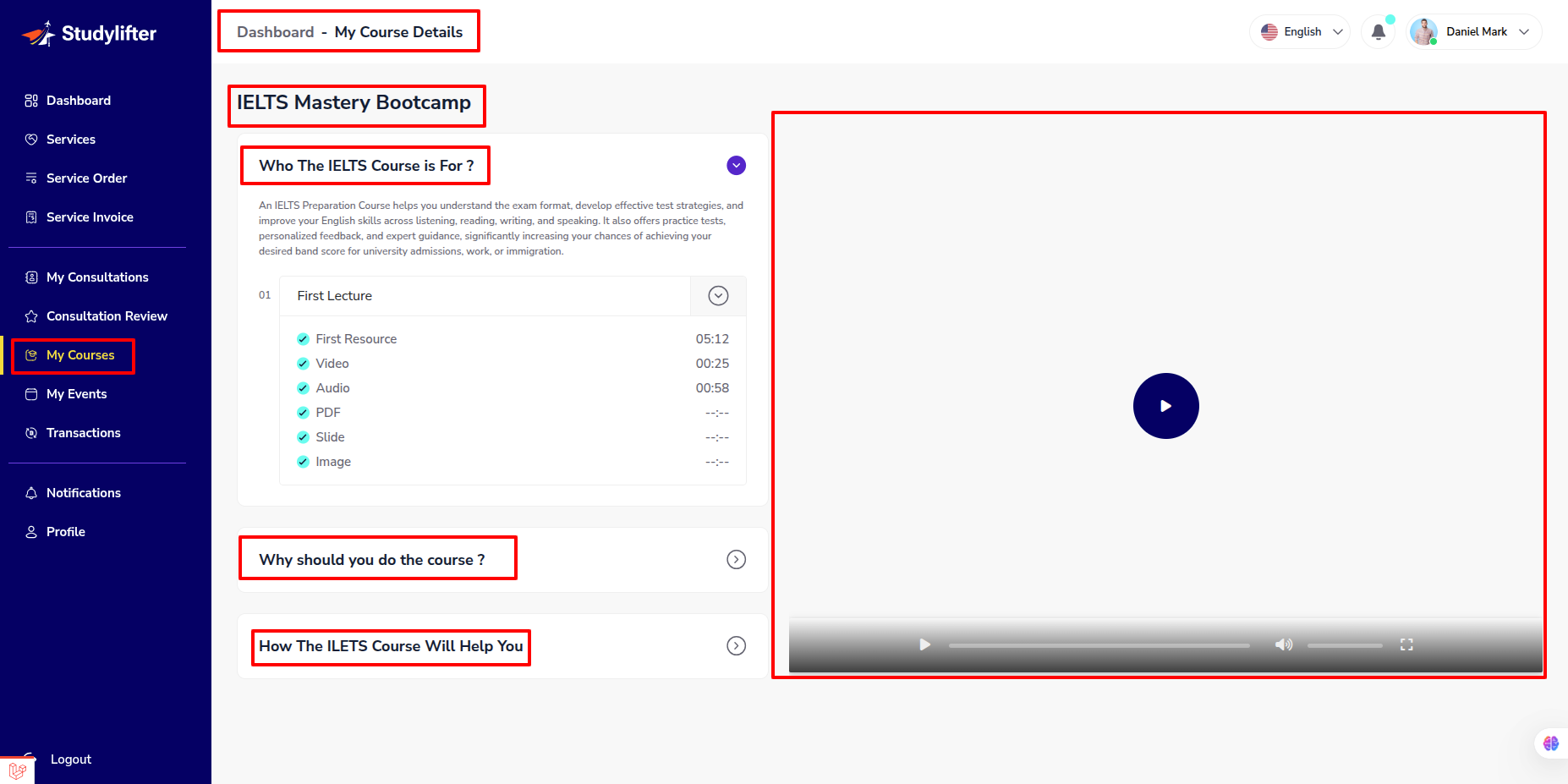
- View Details
My Consultation
Checkout (student frontend)
Step: 1
- Log in to the student panel's root URL, navigate to Footer Paid Book a Consultation, click on it, and proceed to the Consultation list.
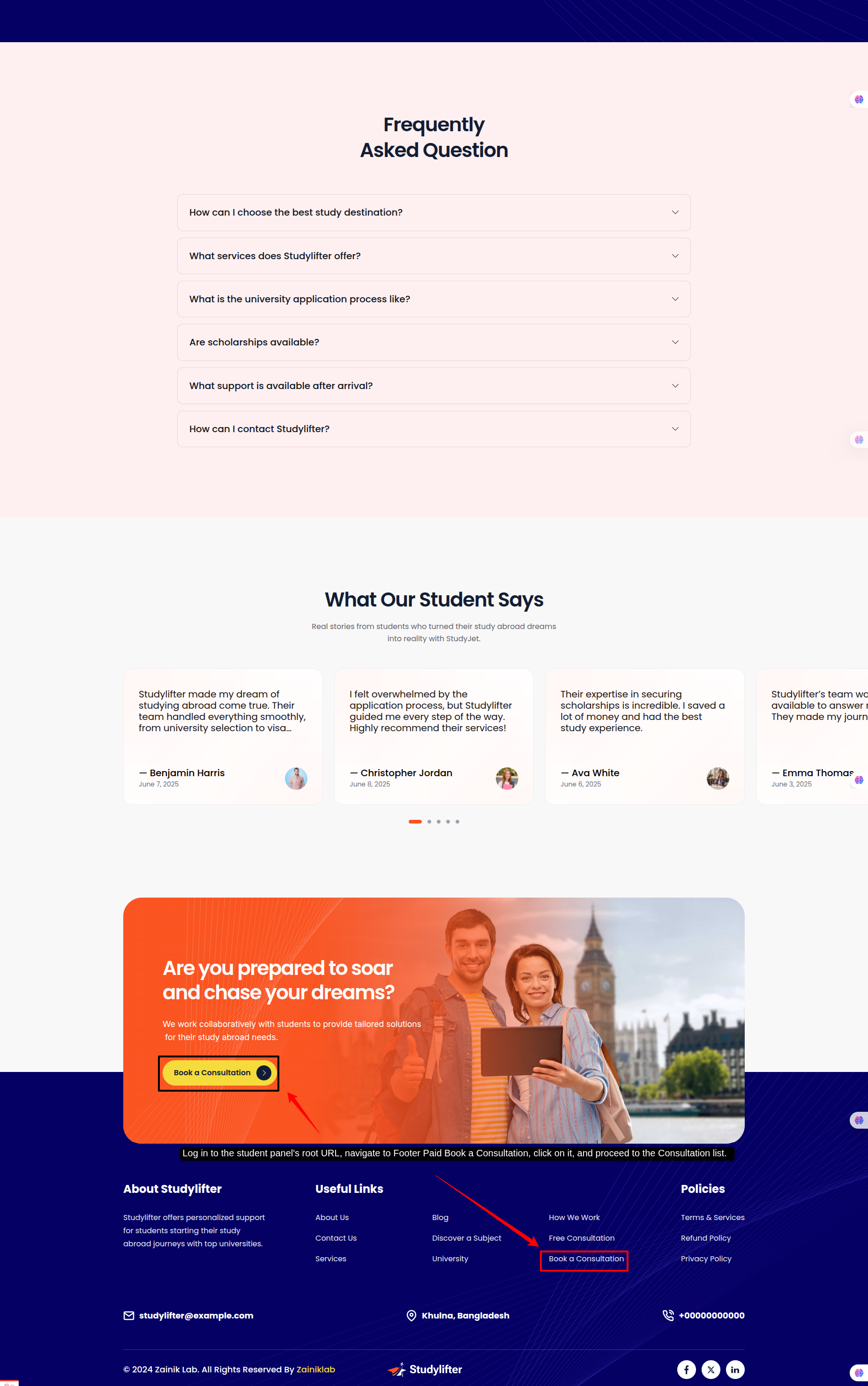
Step: 2
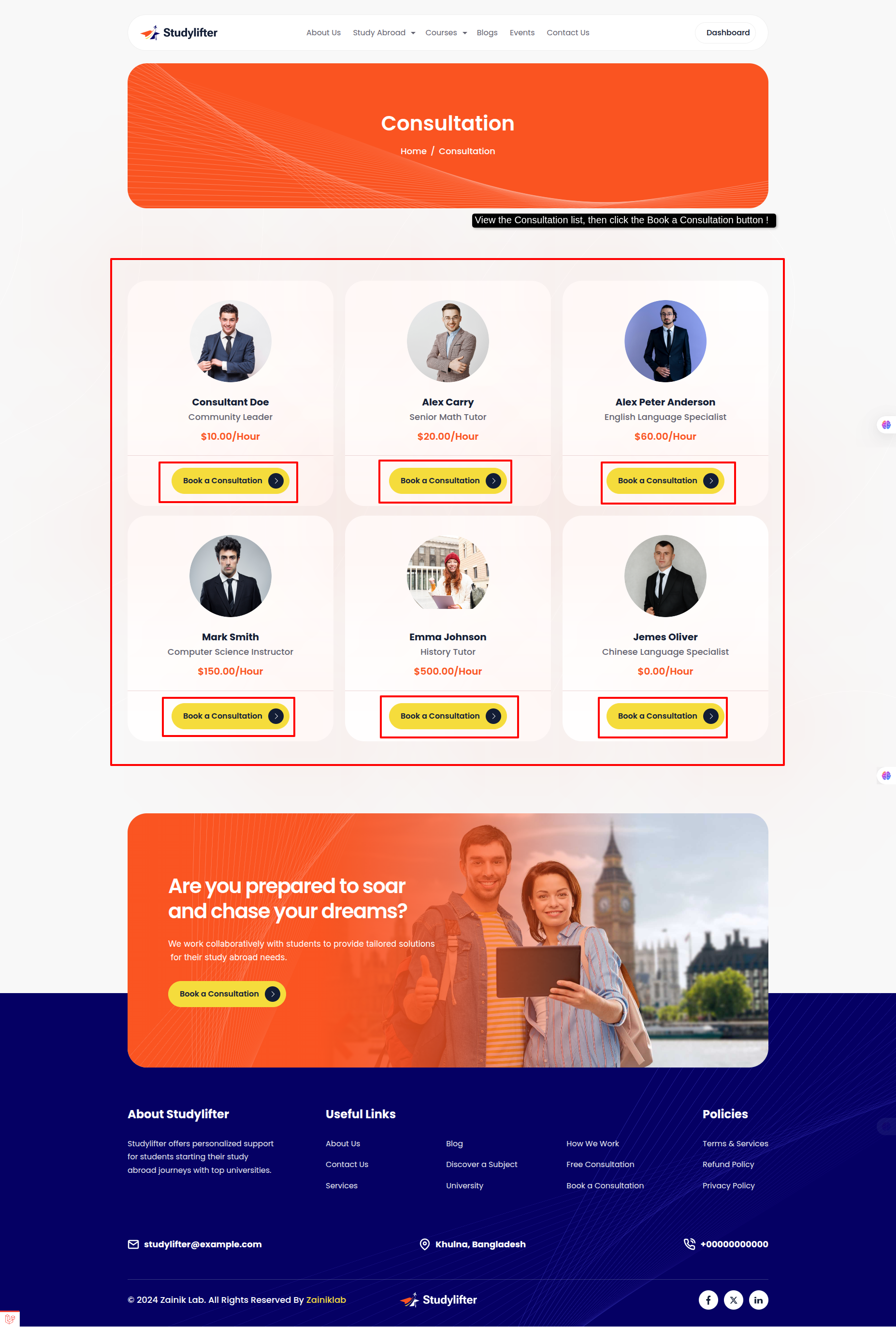
- View the Consultation list, then click the Book a Consultation button !
Step: 3
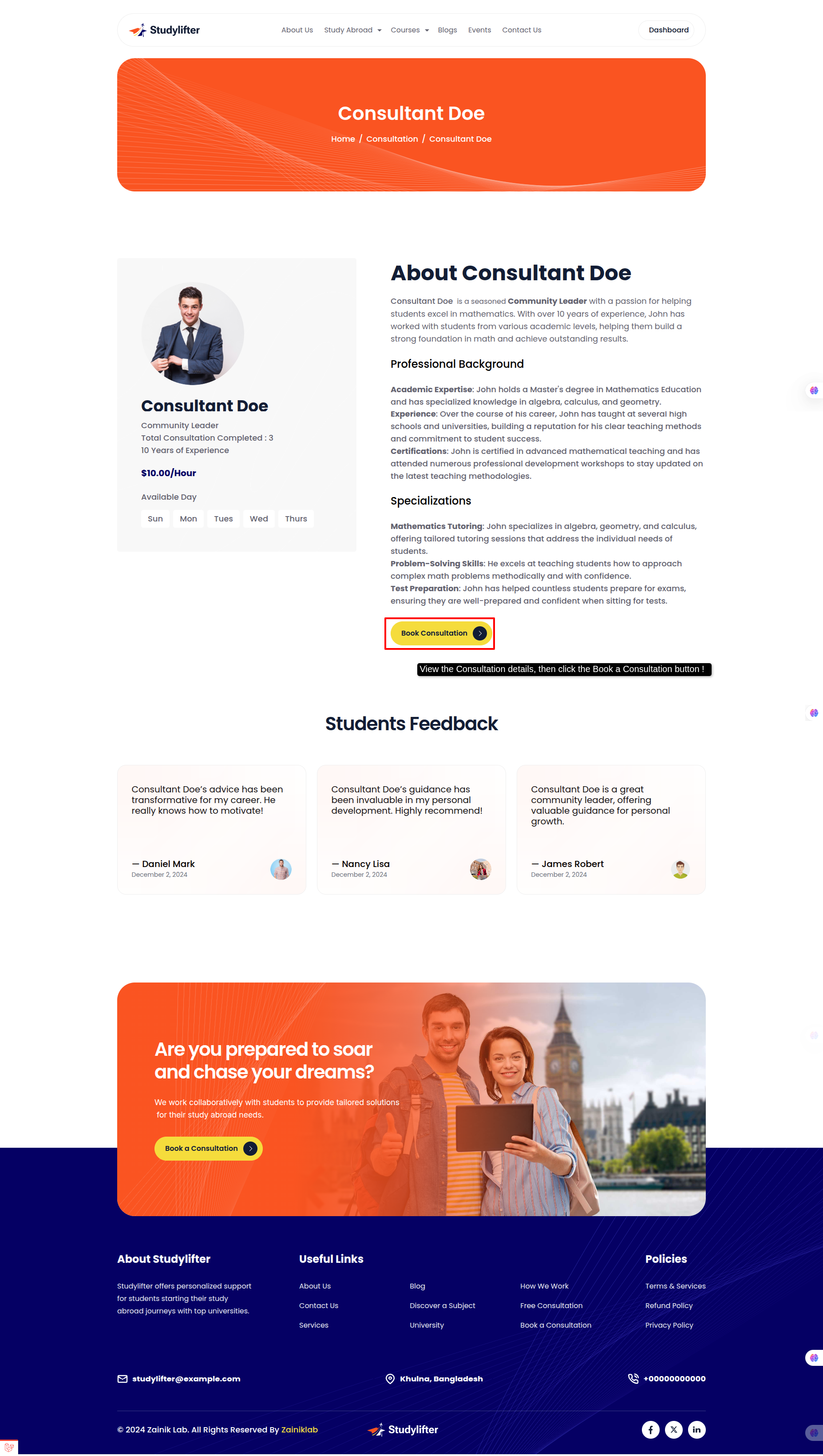
- View the Consultation details, then click the Book a Consultation button !
Step: 4
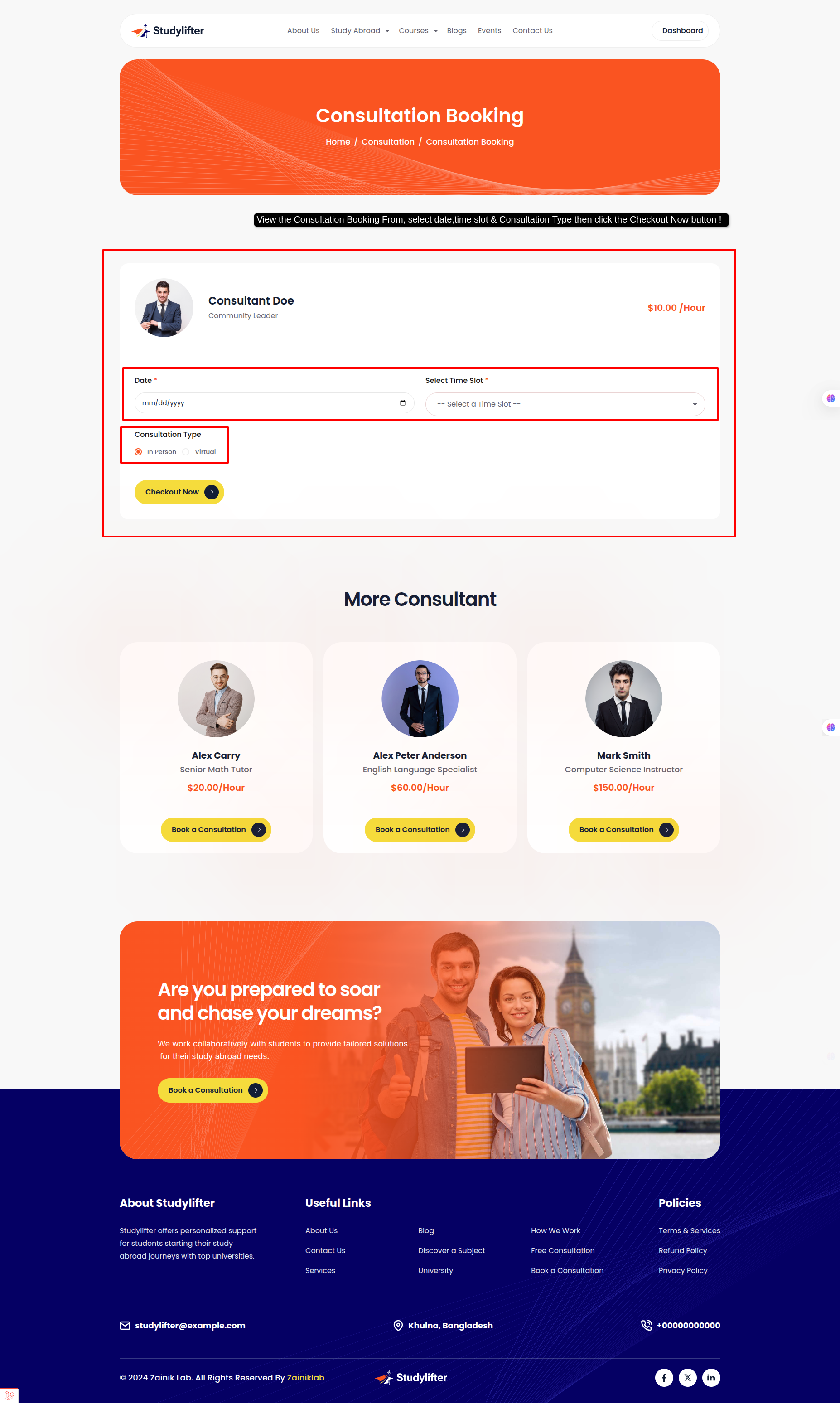
- View the Consultation Booking From, select date,time slot & Consultation Type then click the Checkout Now button !
Step: 5
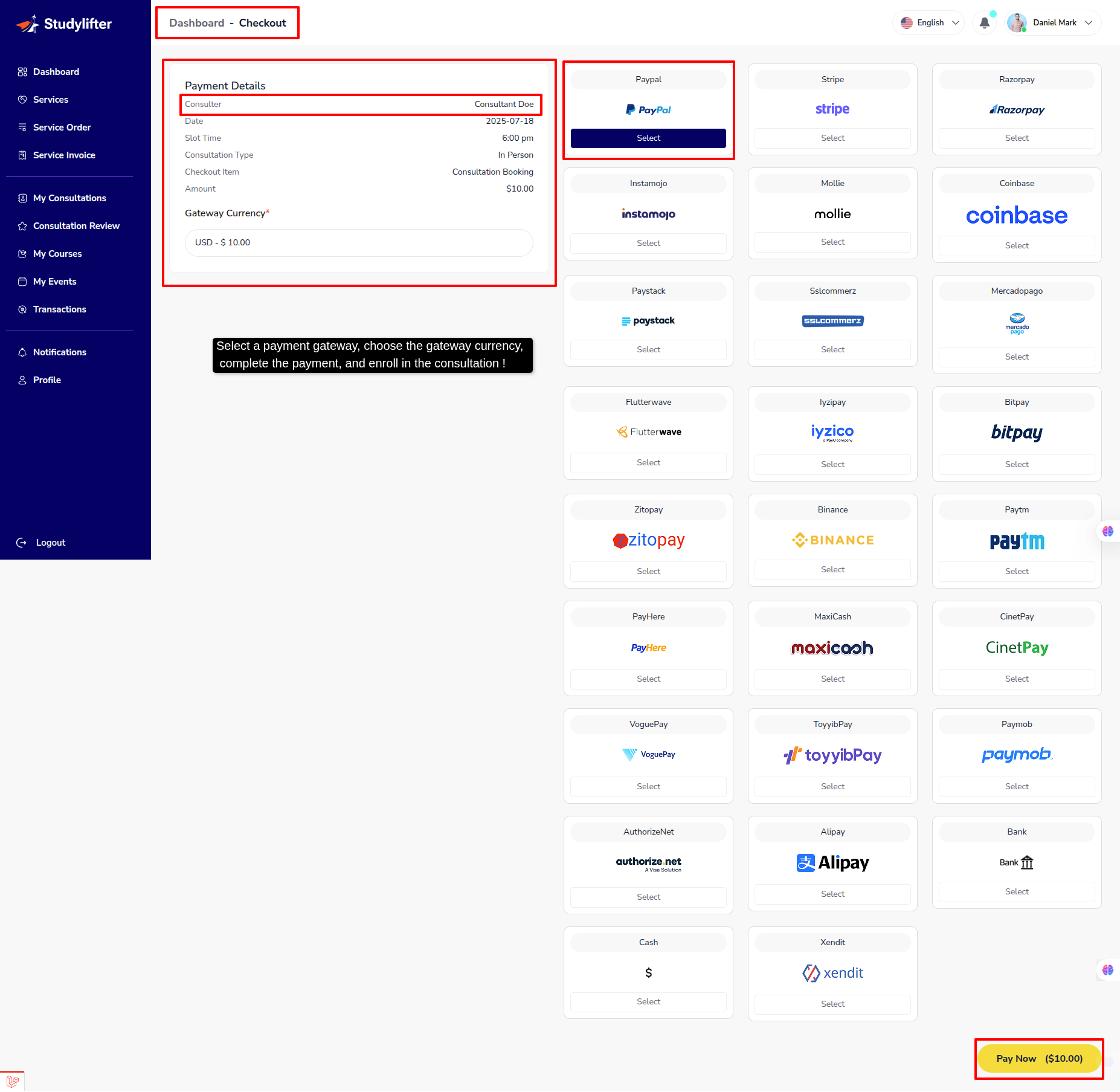
- Select a payment gateway, choose the gateway currency, complete the payment, and enroll in the consultation !
Step: 6
- Student can view your Consultation list here.
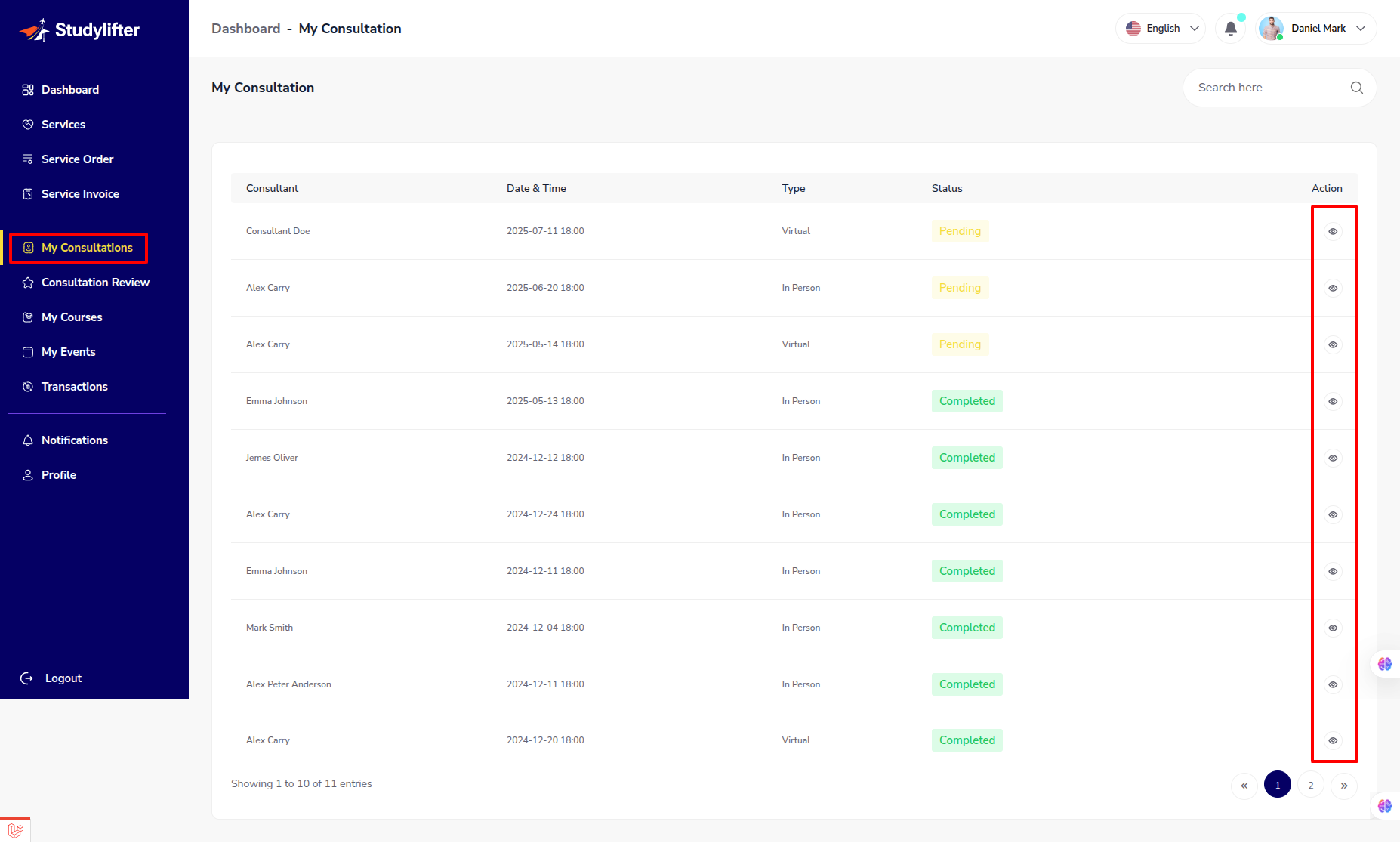
- View Details/Review
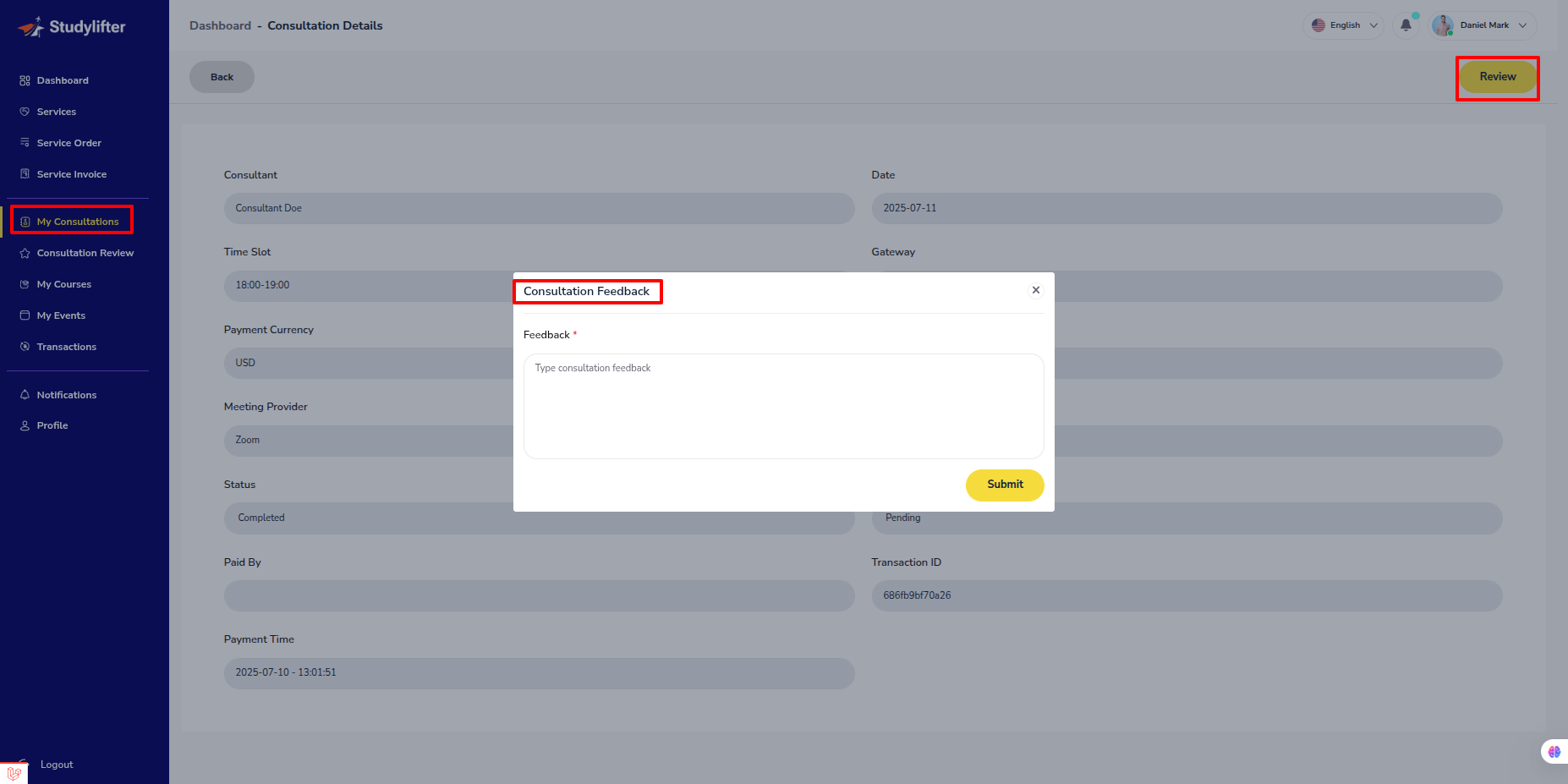
Consulter review
- Student can view own Consultation review feedback history here.
My Event
Checkout (student frontend)
Step: 1
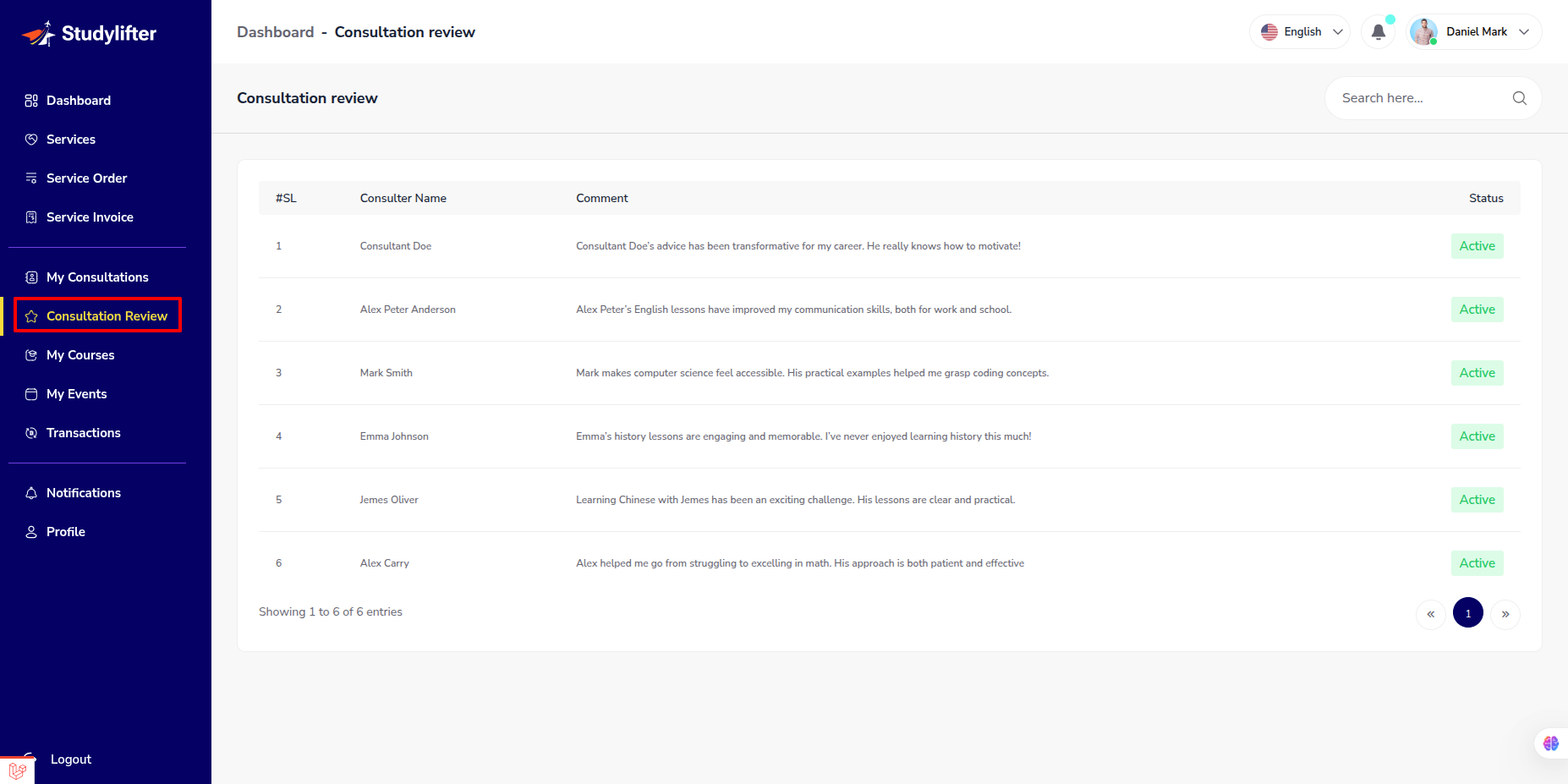
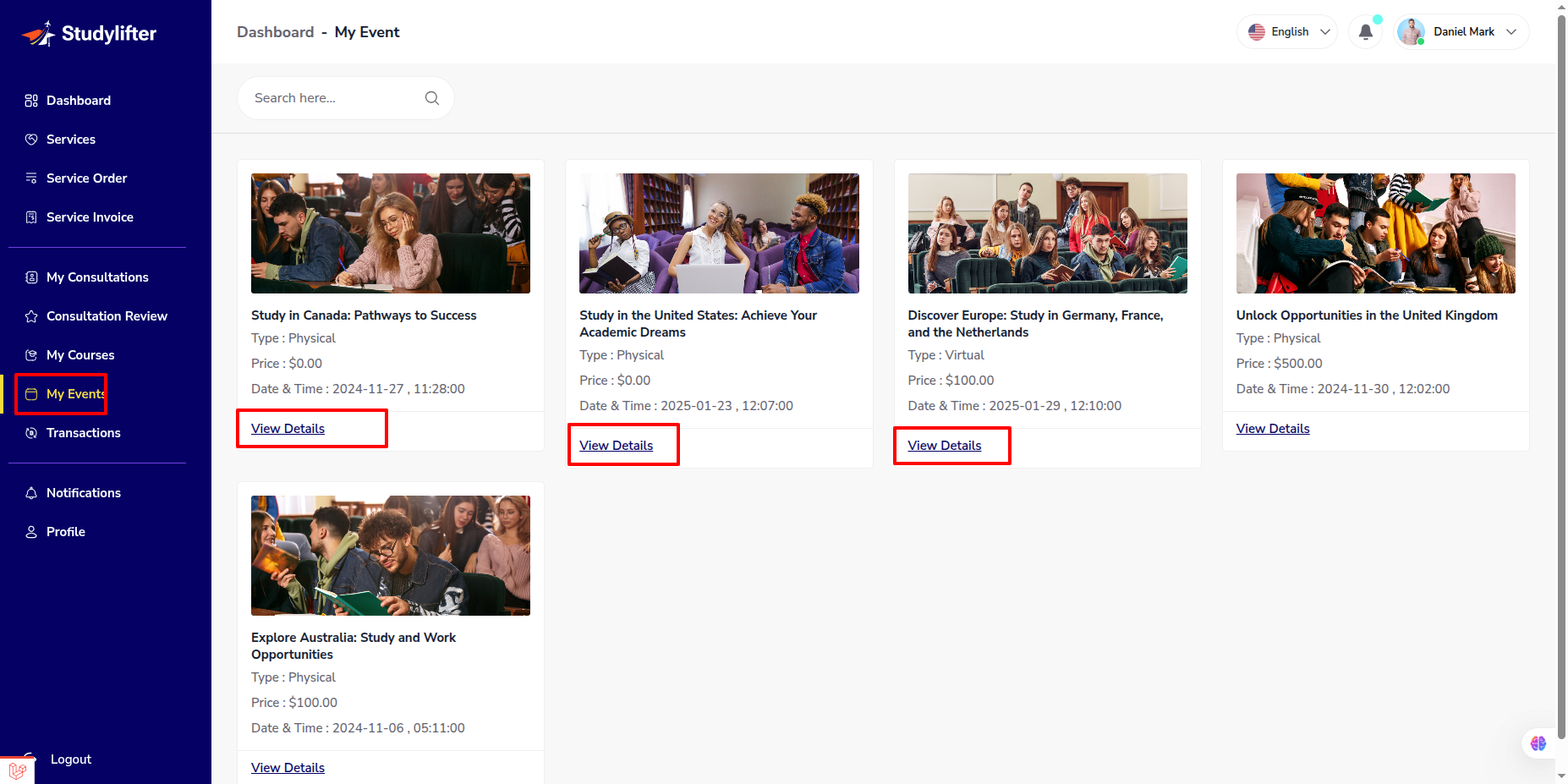
- Log in to the student panel's root URL, navigate to Nav Event Or this Event Section, click on it, and proceed to the event list.
Step: 2
- Go to event list title or book a ticket ! (Search here Country,University & Study Levels)

Step: 3
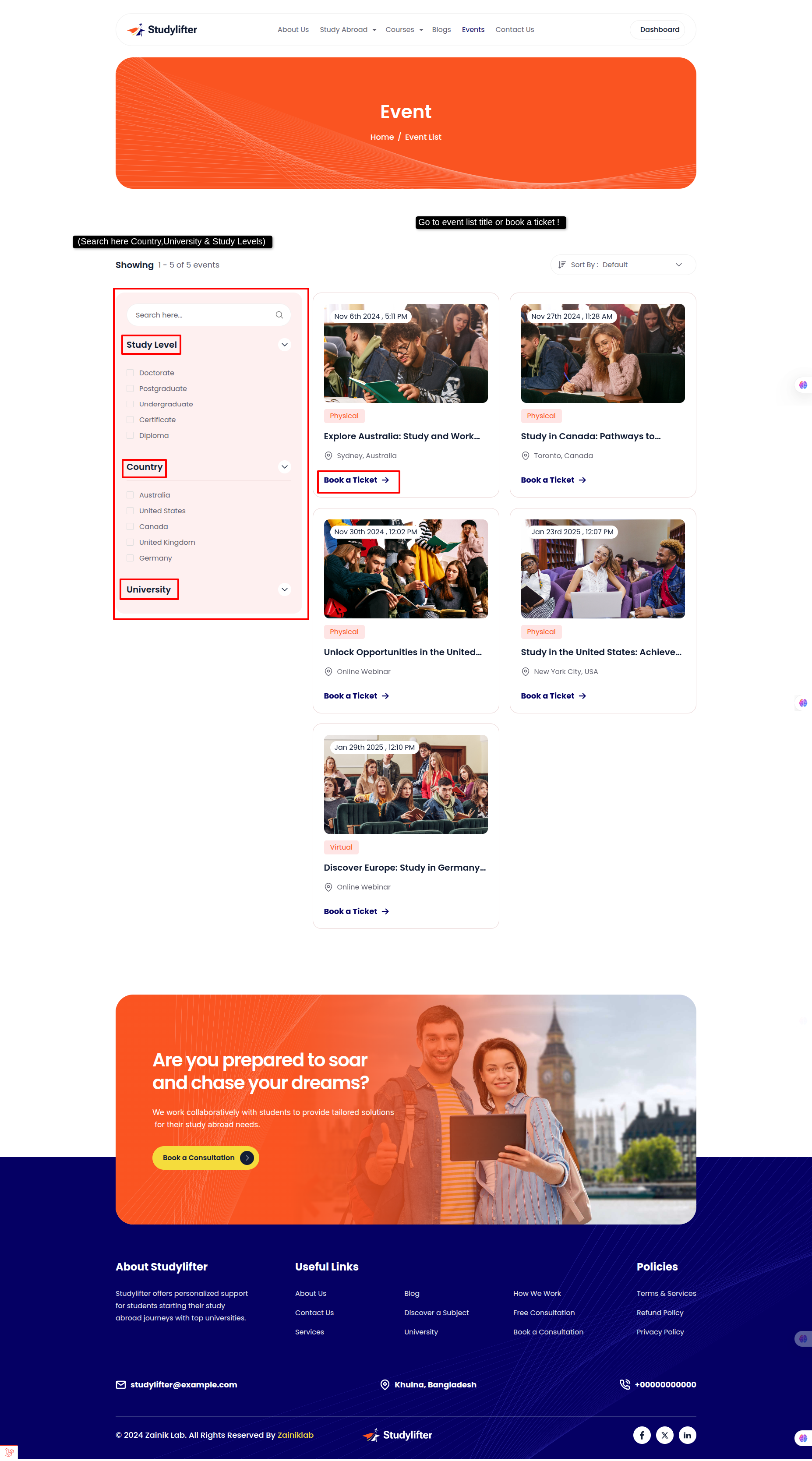
- View the Event Details, then click the Book a Ticket button !
Step: 4
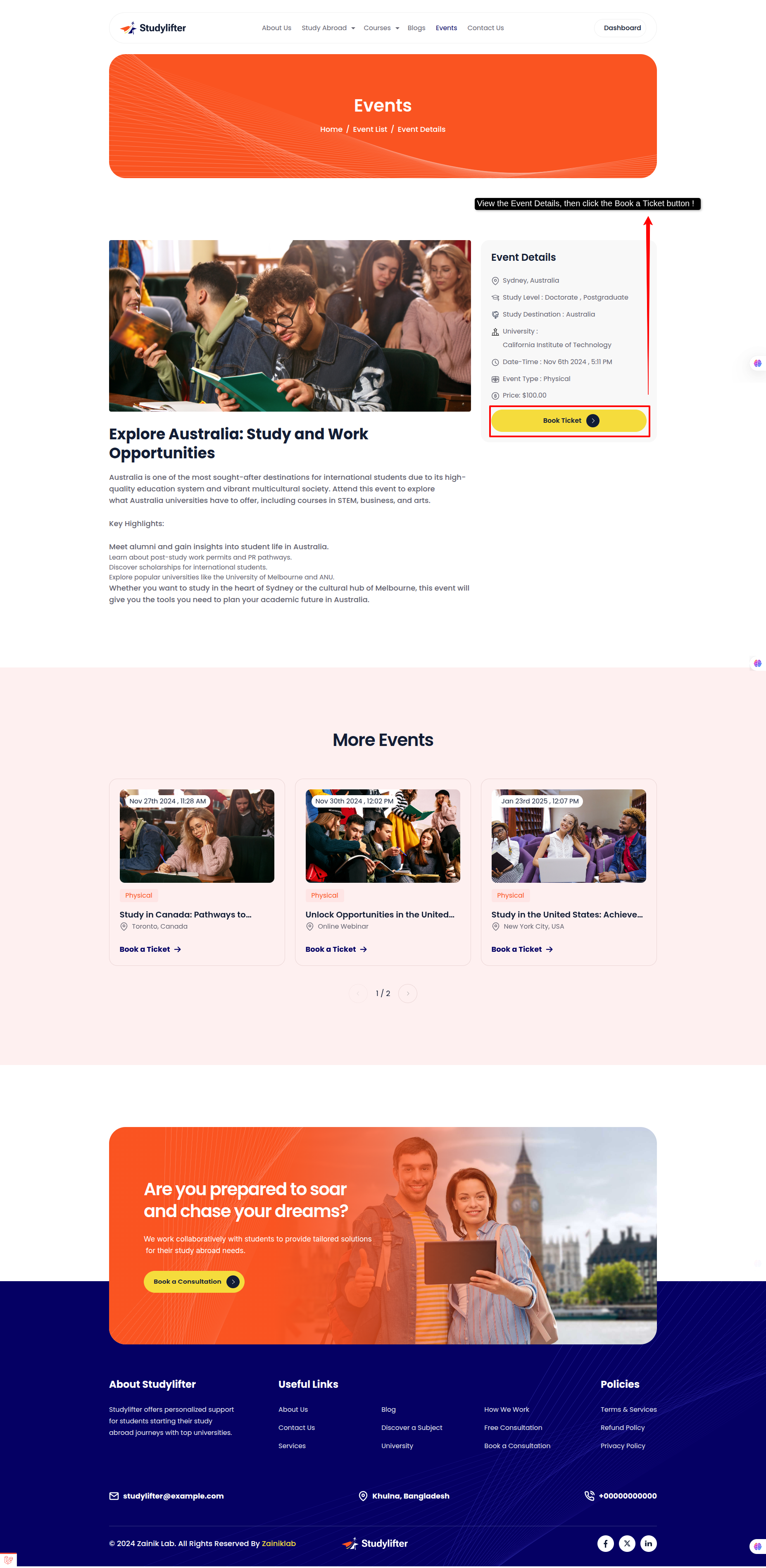
- Select a payment gateway, choose the gateway currency, complete the payment, and checkout in the event !
Step: 5
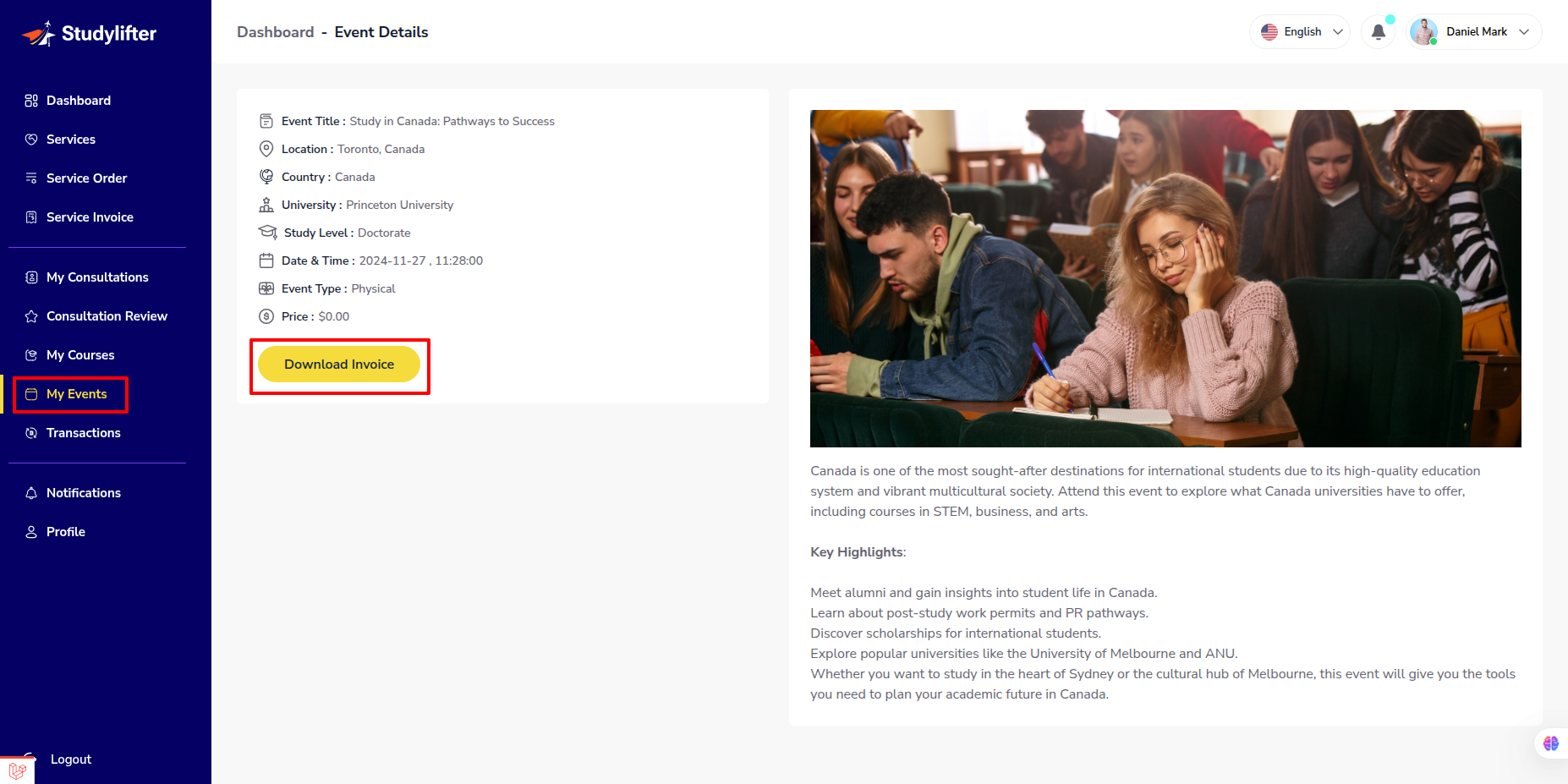
- Student can view Event list here.
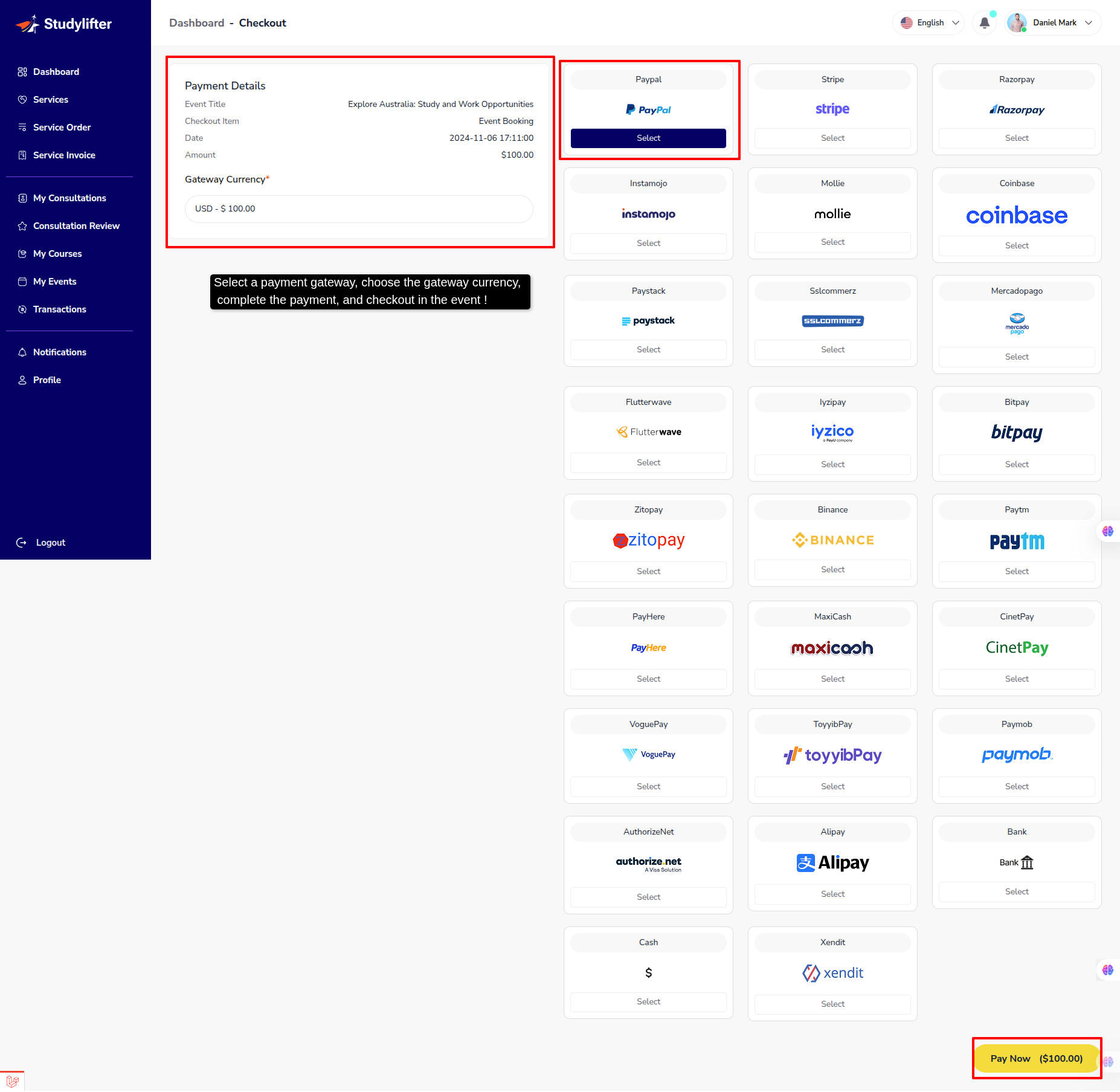
- Event Details View
Service
Checkout (student)
Step: 1
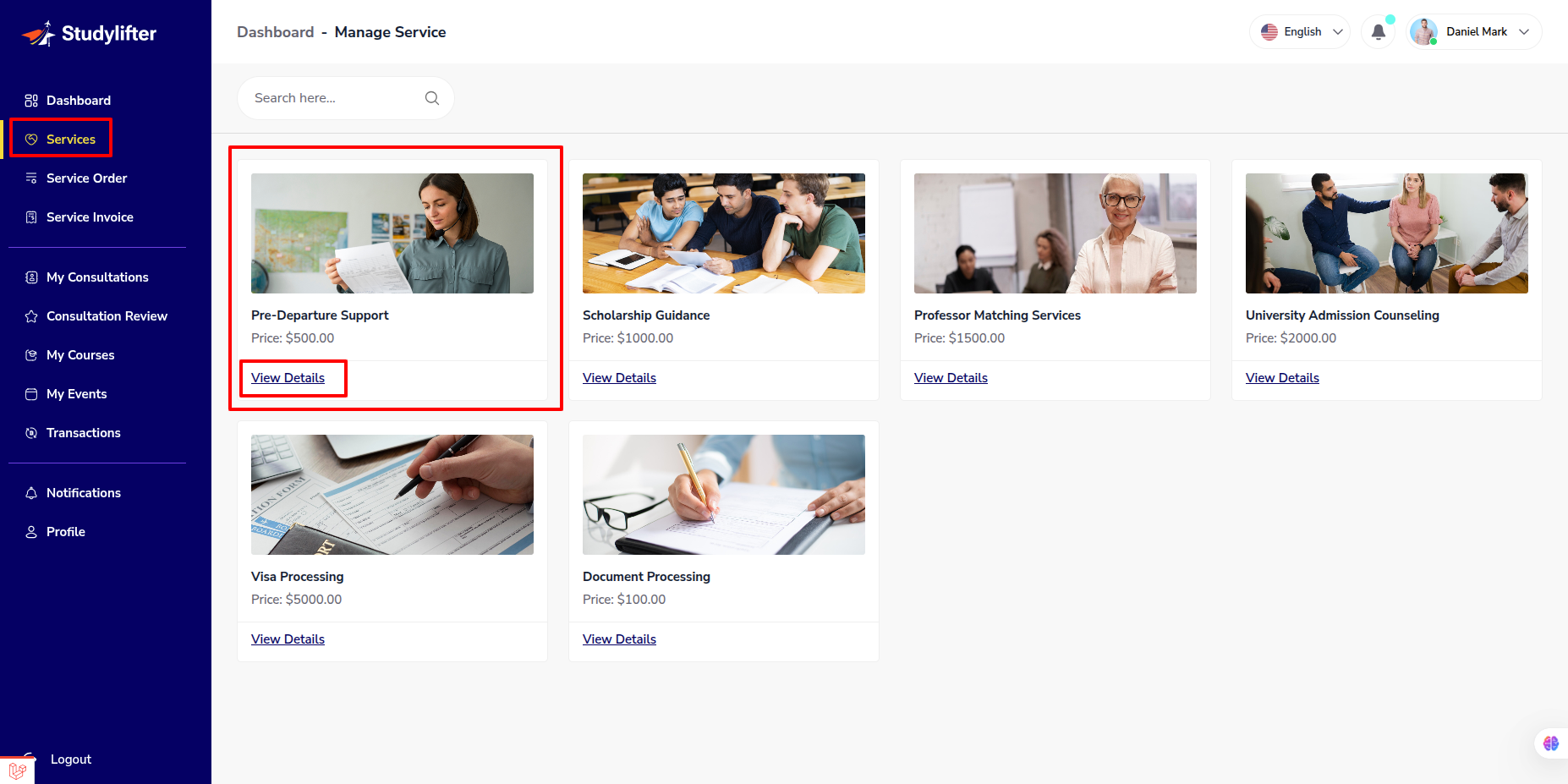
- Student can view all service list here !
Step: 2
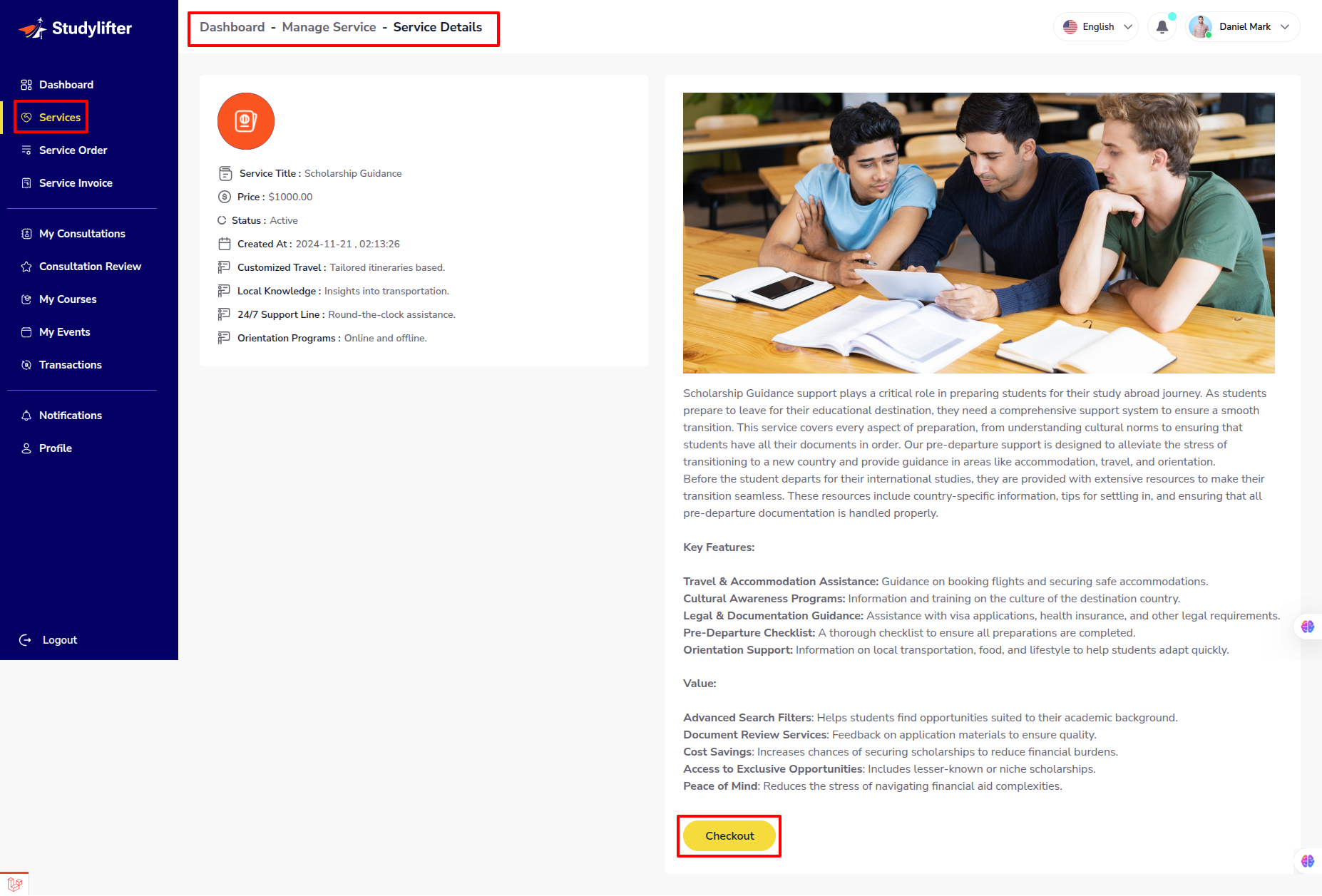
- Log in to the student panel's student -> service -> details, then click the Checkout button !
Step: 3
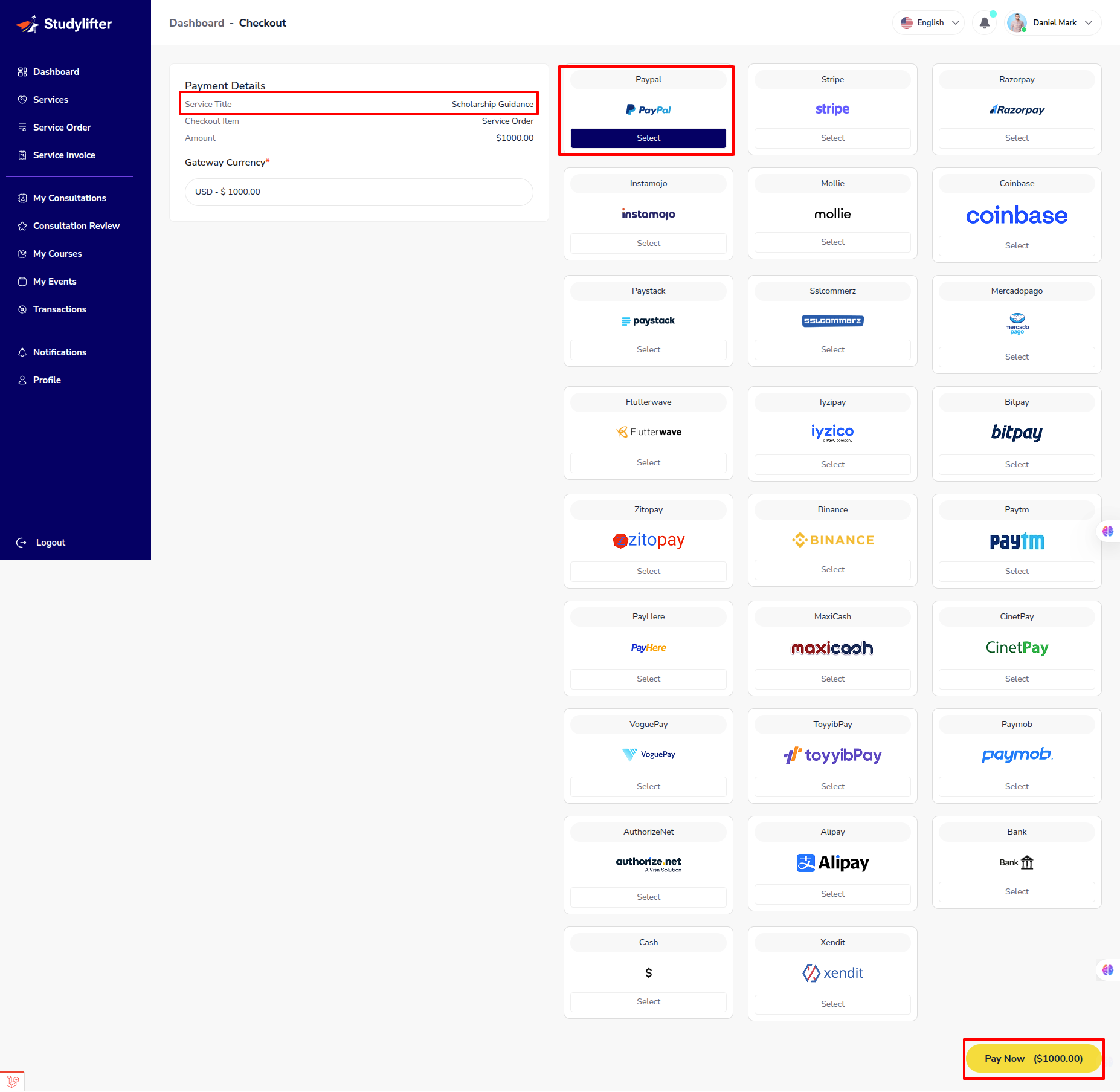
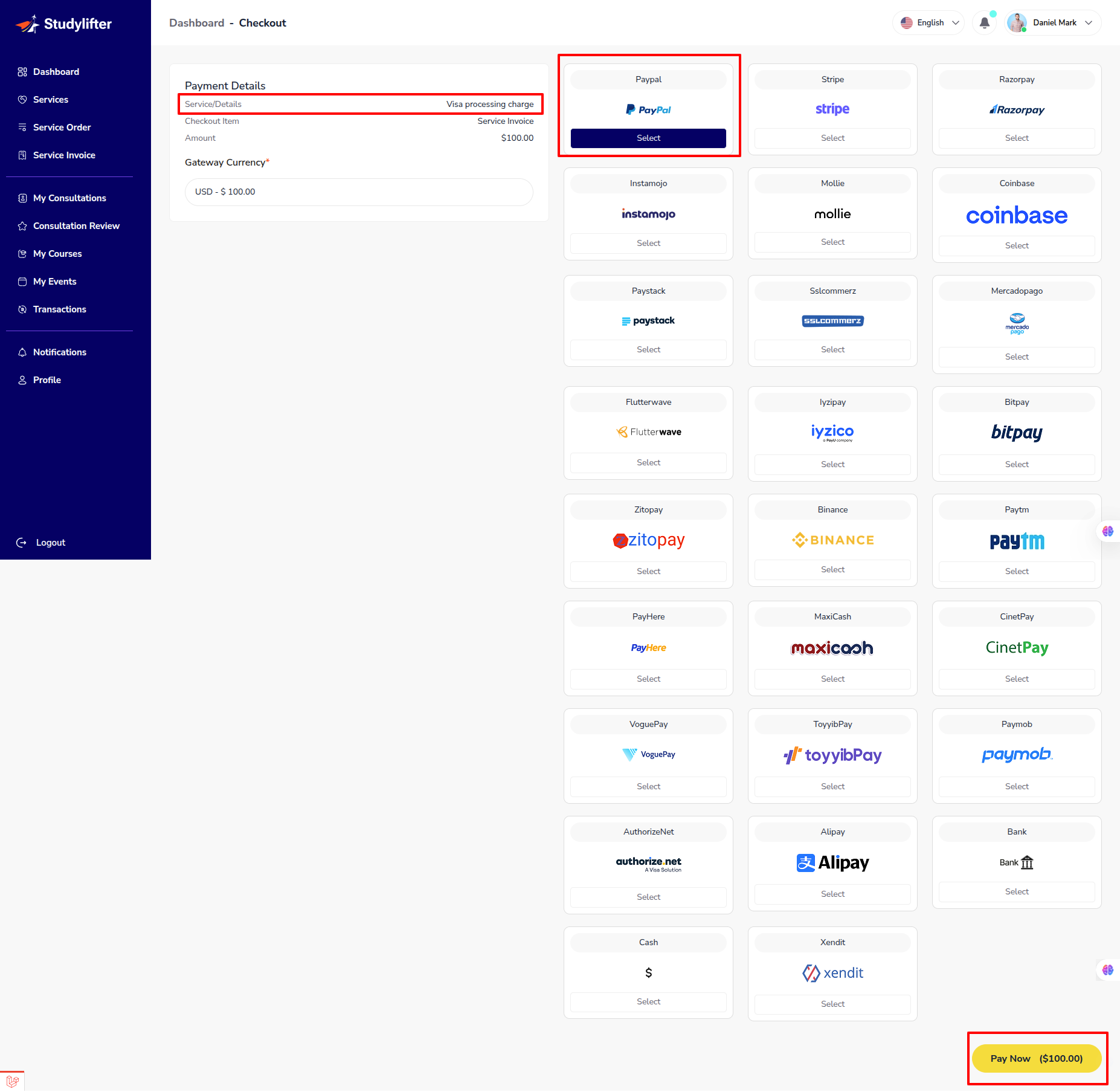
- Select a payment gateway, choose the gateway currency, complete the payment, and checkout in the service !
- Here the checkout!
Service Order
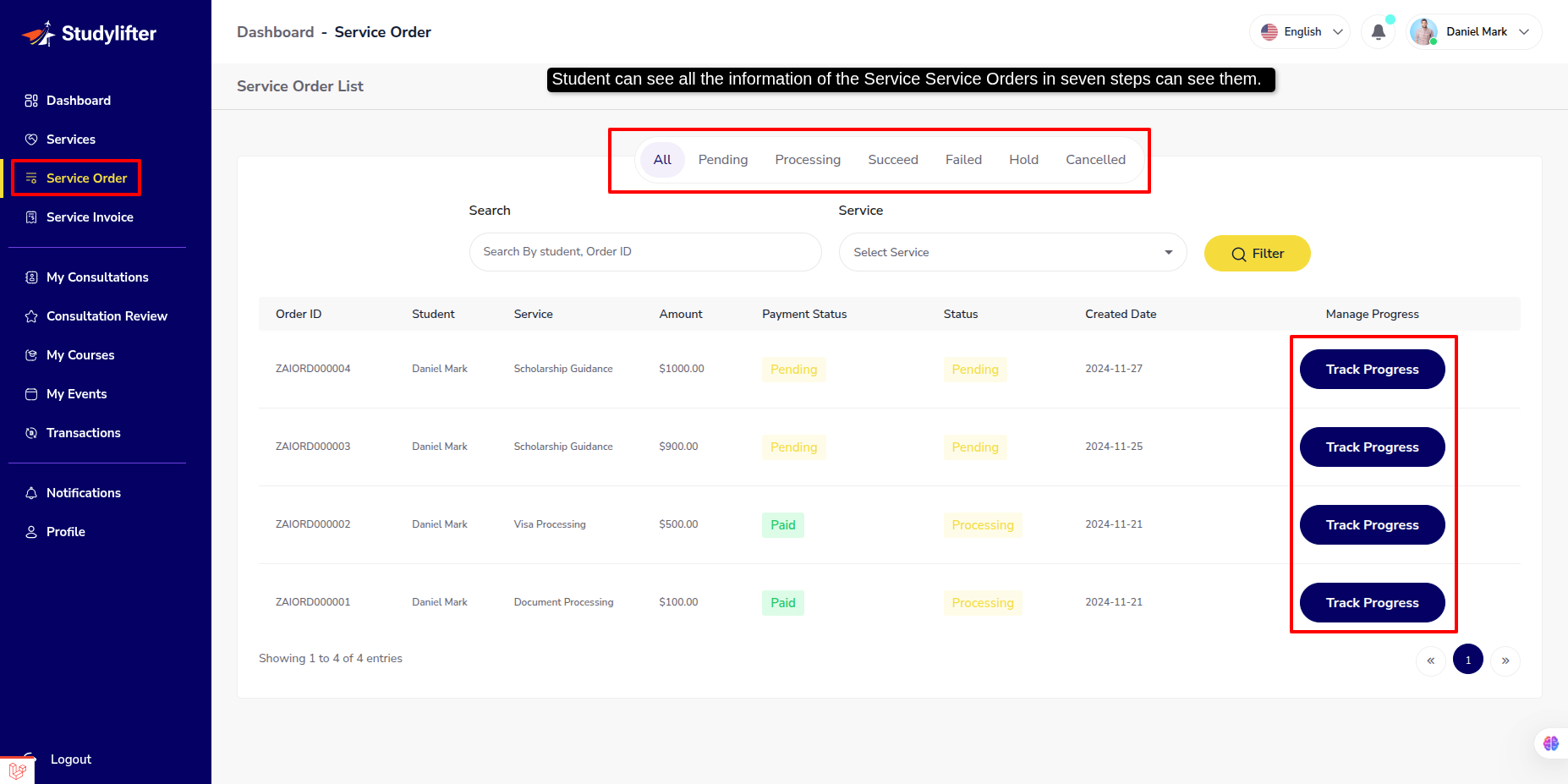
- In this panel Student can see own Service Orders here.
- Student can see all the information of the Service Service Orders in seven steps can see them.
-
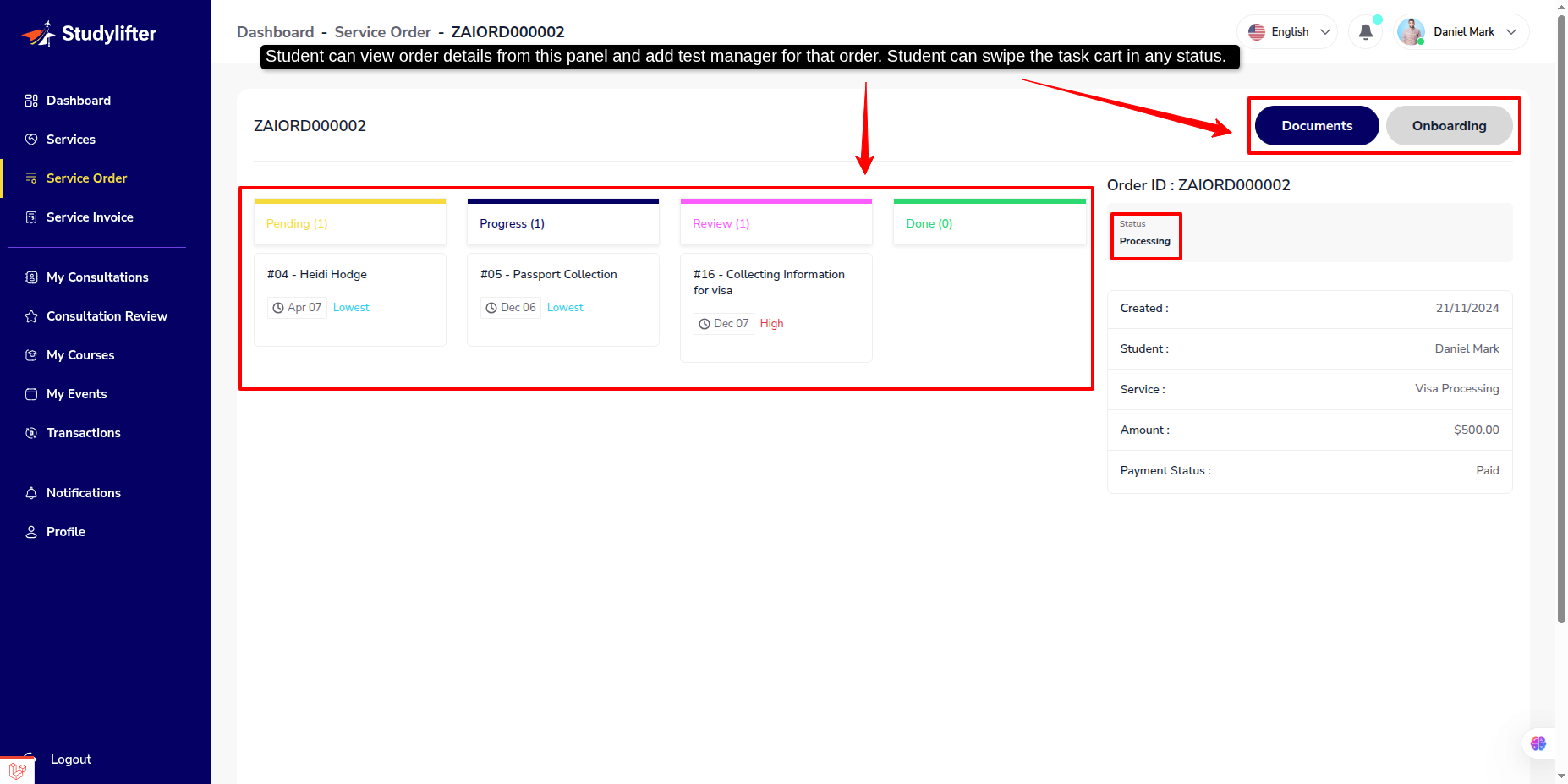
Task Progress
-
Student can view order details from this panel and add test manager for that order. Student can swipe the task cart in any status.
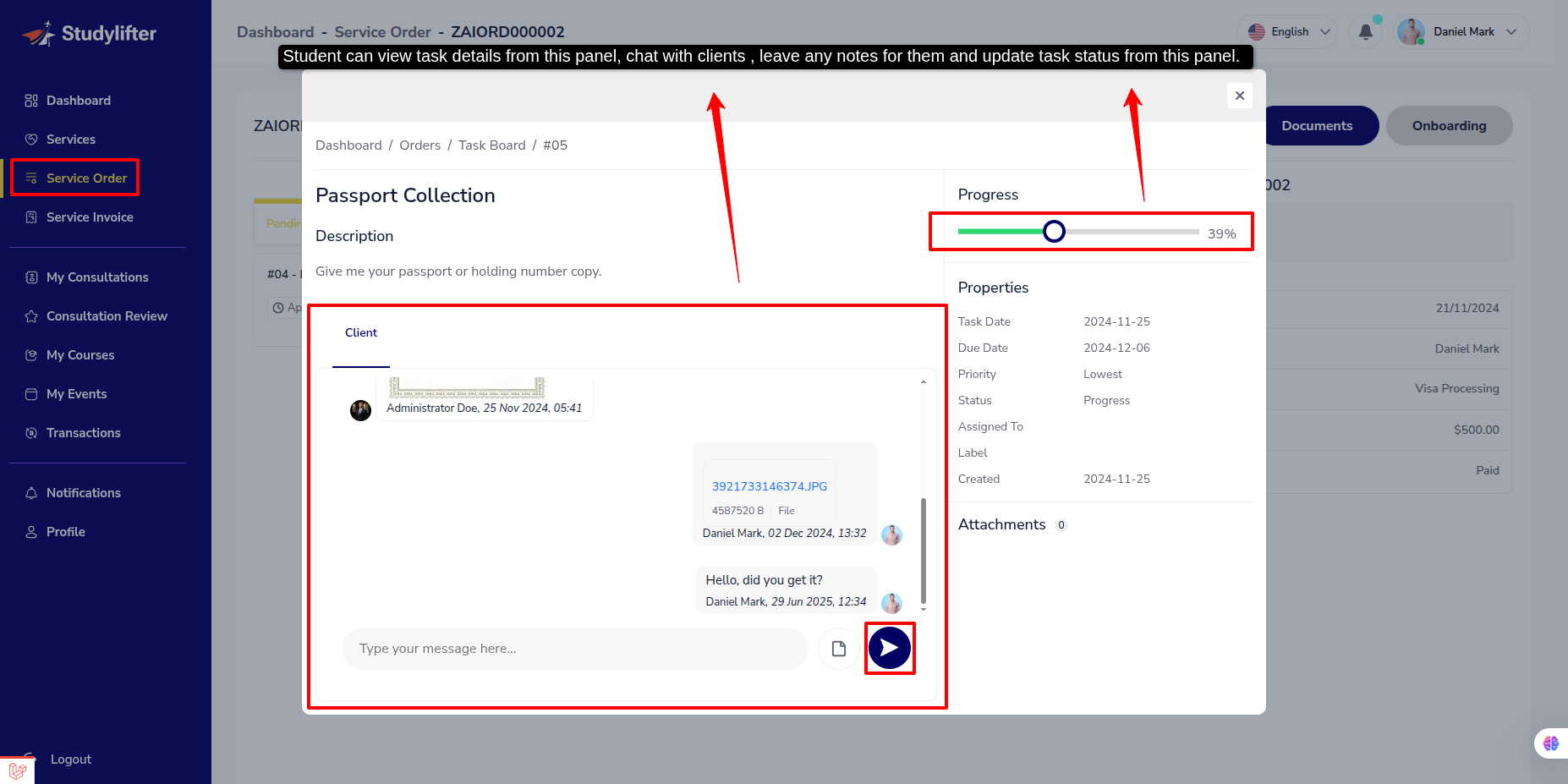
- Student can view task details from this panel, chat with clients , leave any notes for them and update task status from this panel.
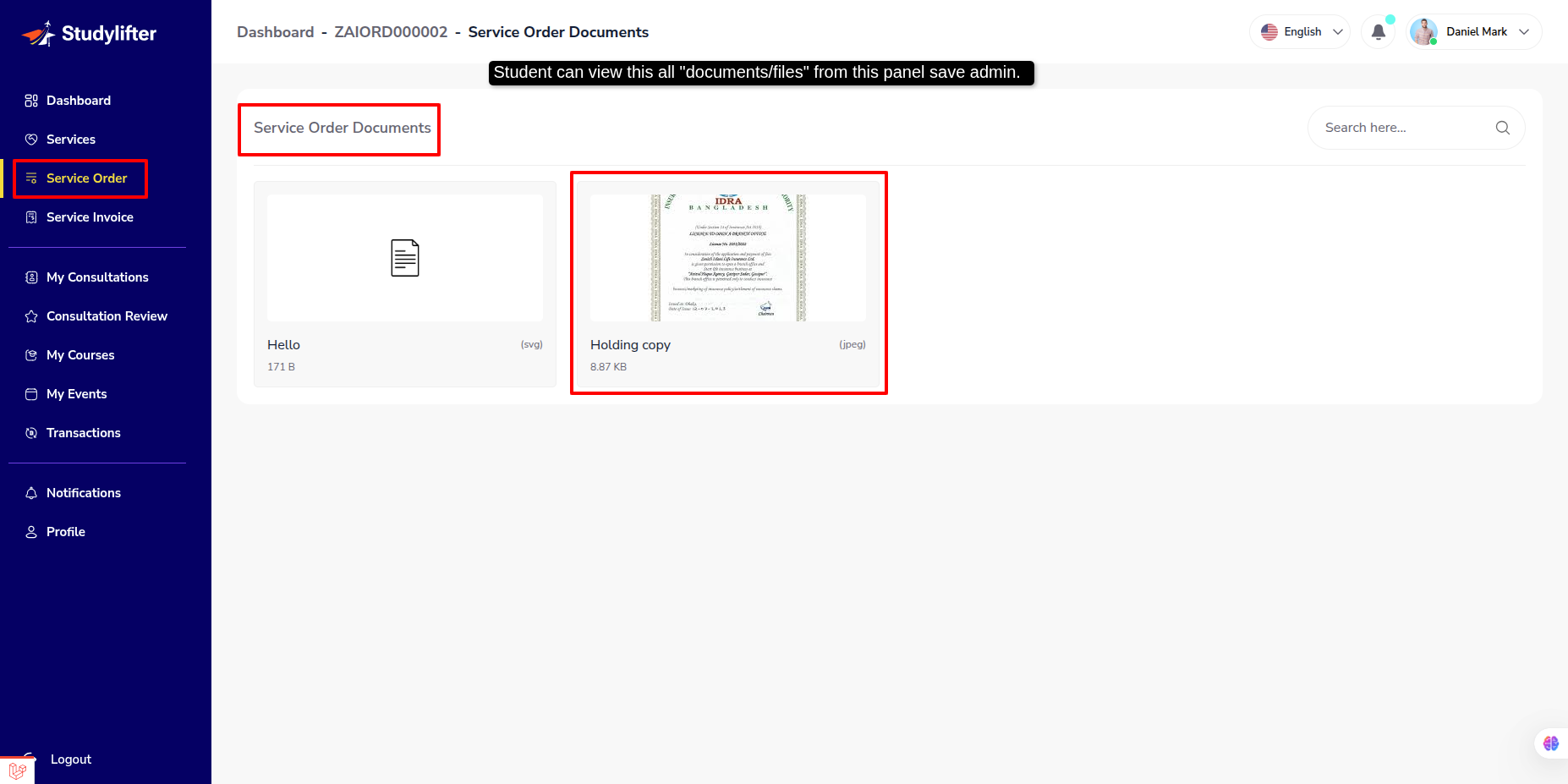
- Documents
Student can view this all "documents/files" from this panel save admin.
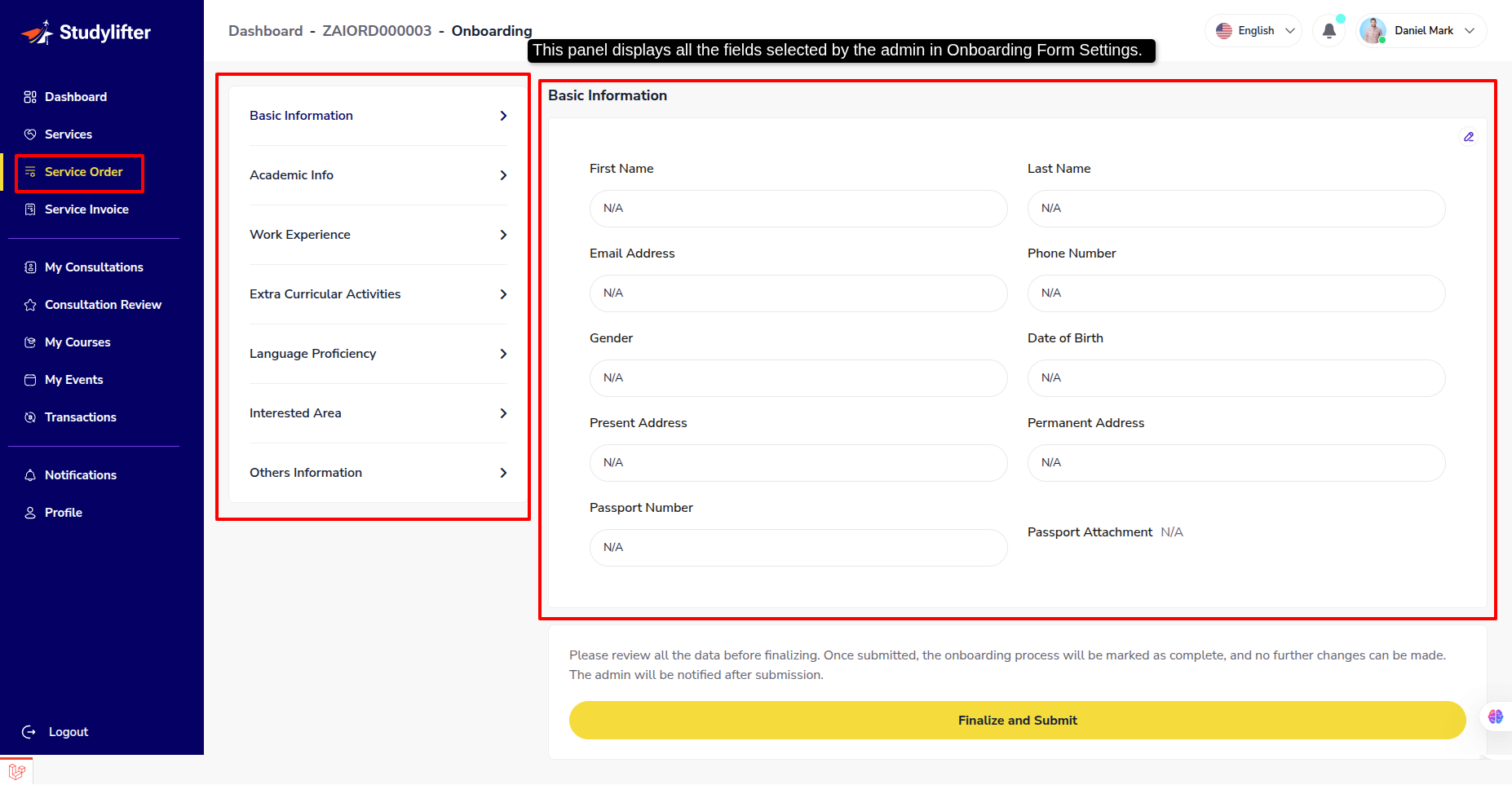
- Onboarding
This panel displays all the fields selected by the admin in Onboarding Form Settings.
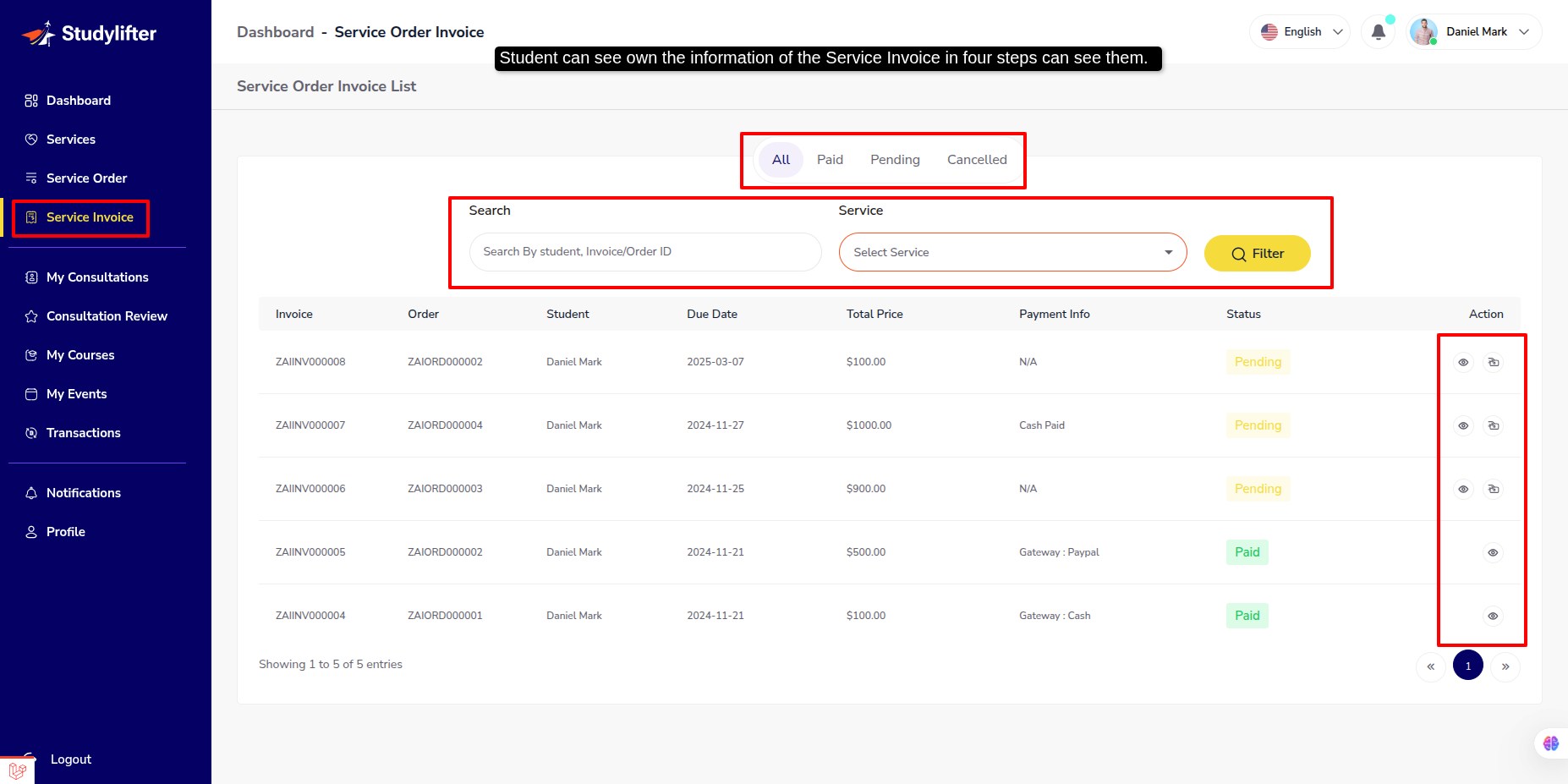
Service Invoice
- Student can see own the information of the Service Invoice in four steps can see them.
-
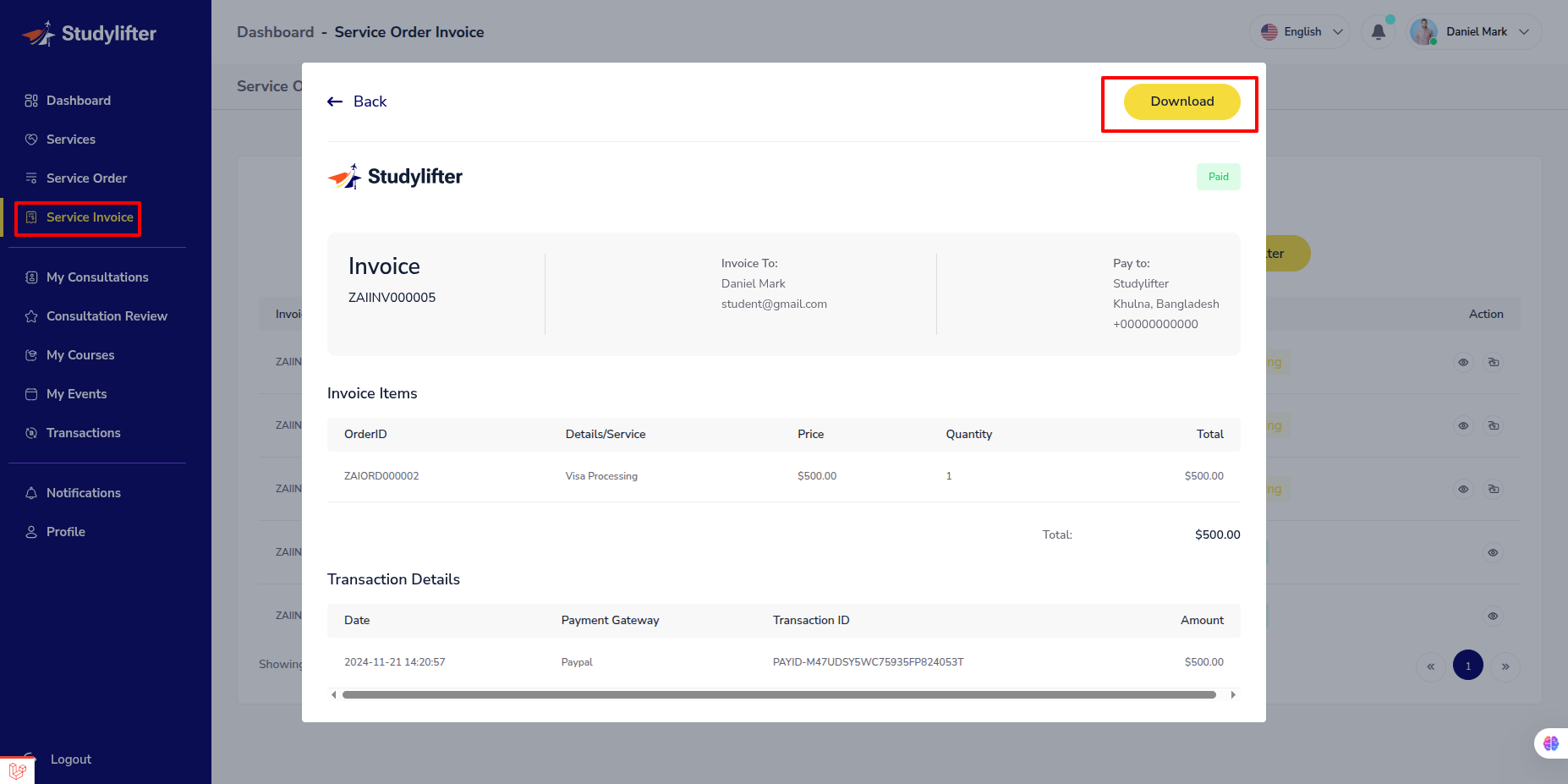
View Invoice
-
The Student can view Invoice for payments.
-
Invoice Payment
-
The Student can click payment icon for service invoice list and checkout here.
Transactions
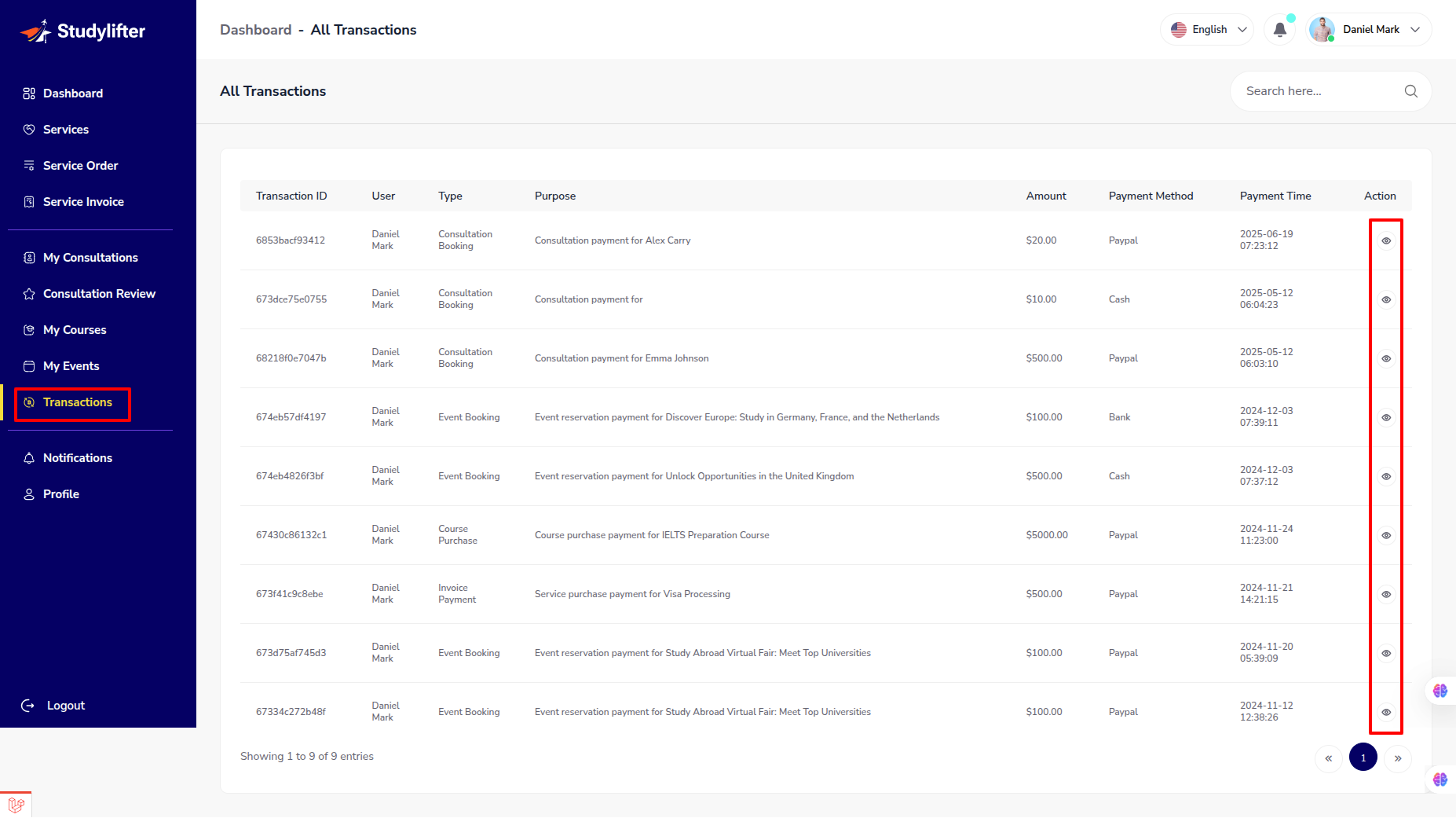
- Student can view own payment transaction history here.
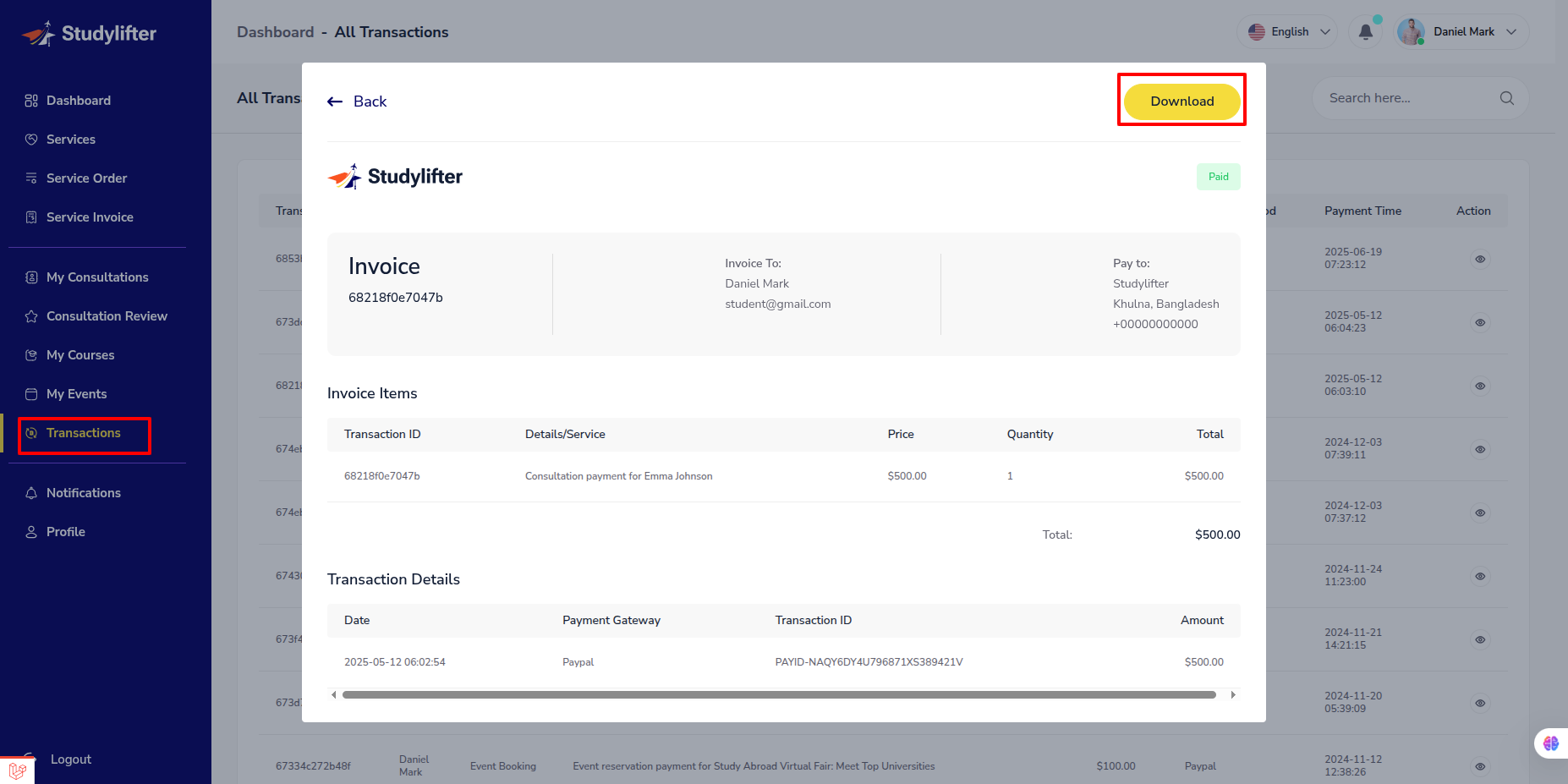
- view details.
Notification
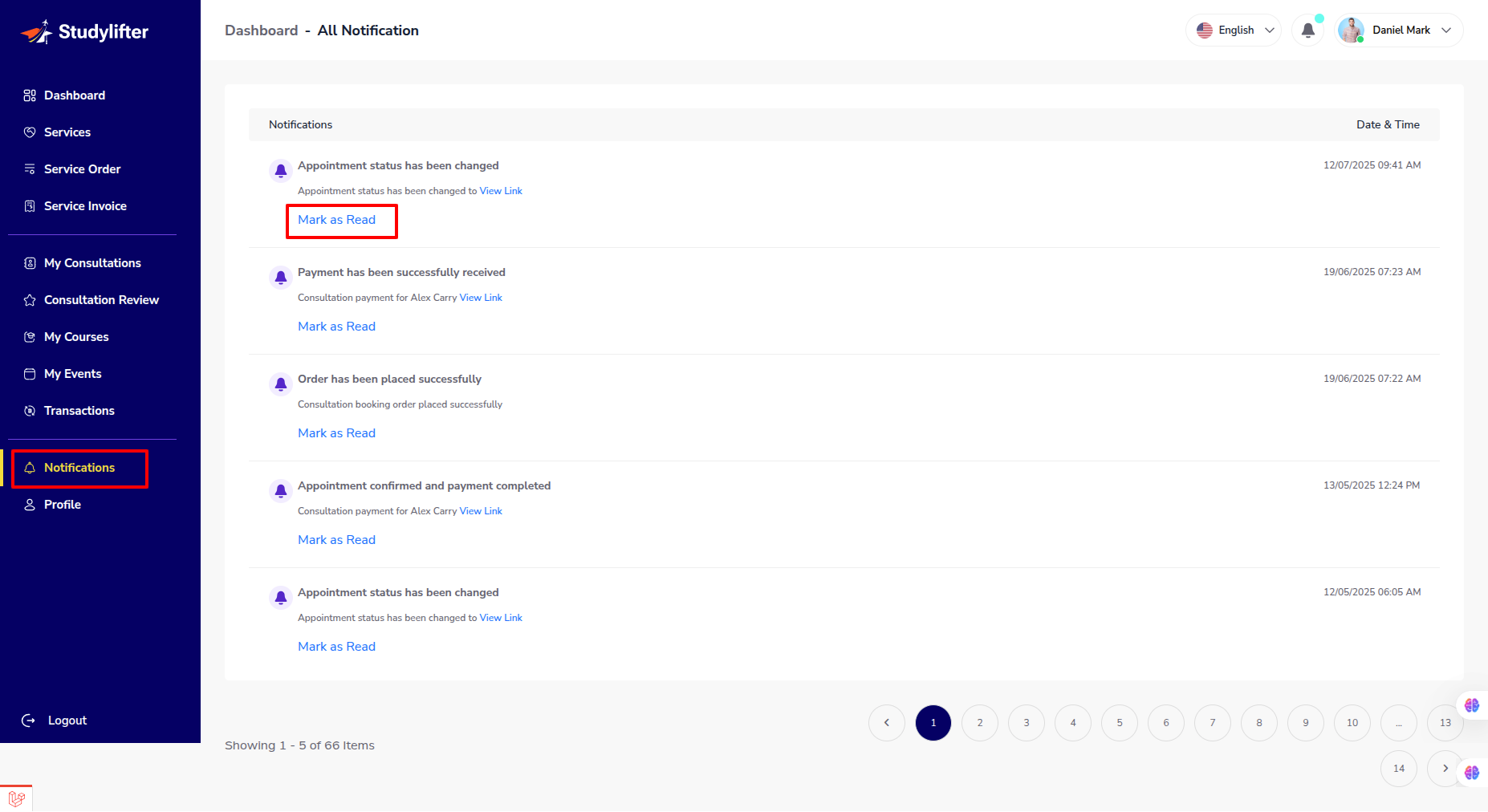
- The Student can view own Notification from this panel, click the view link and show the notification view.
Profile
-
Basic Info
-
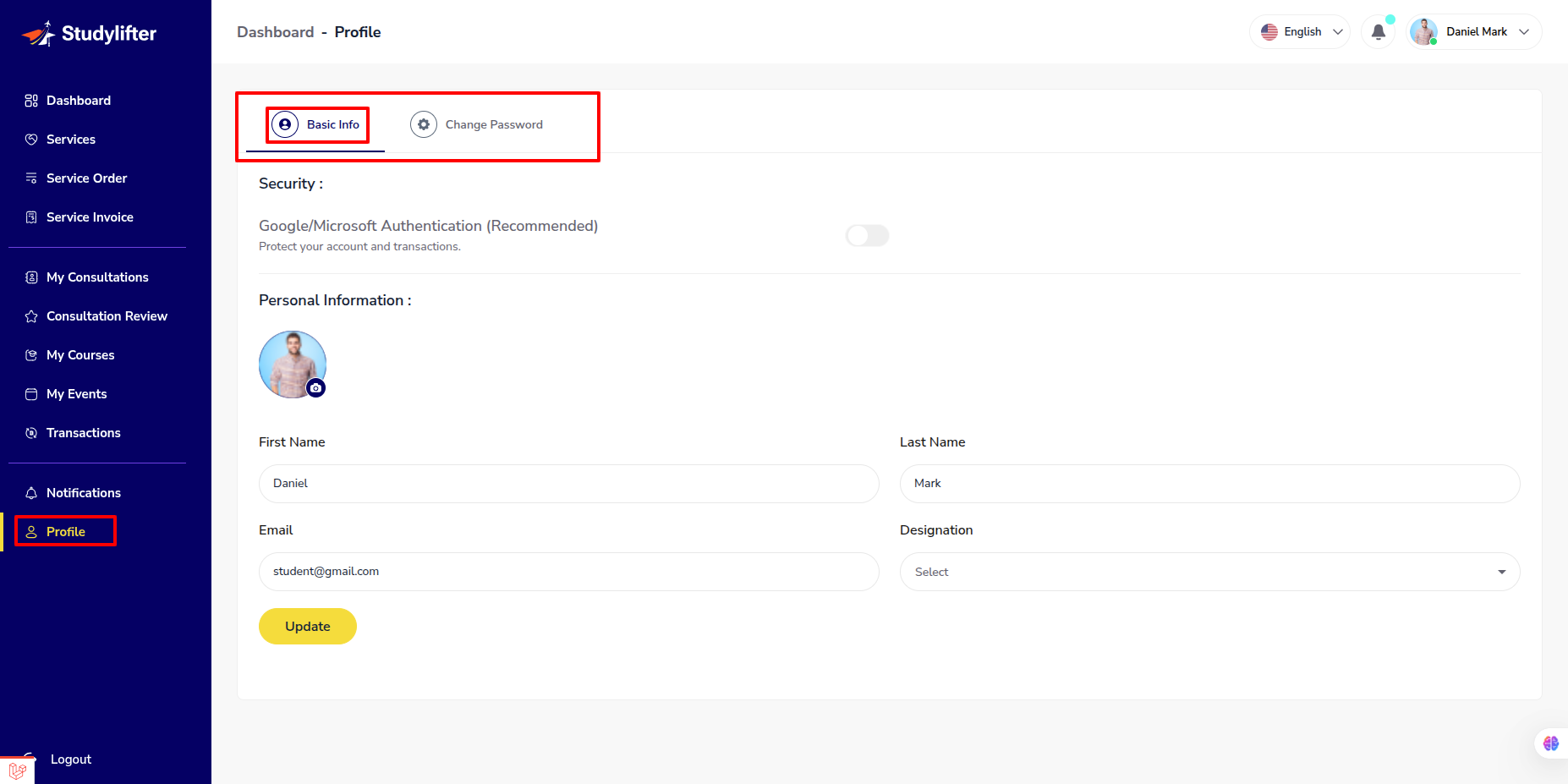
Student can change image, name, email, designation from this panel.
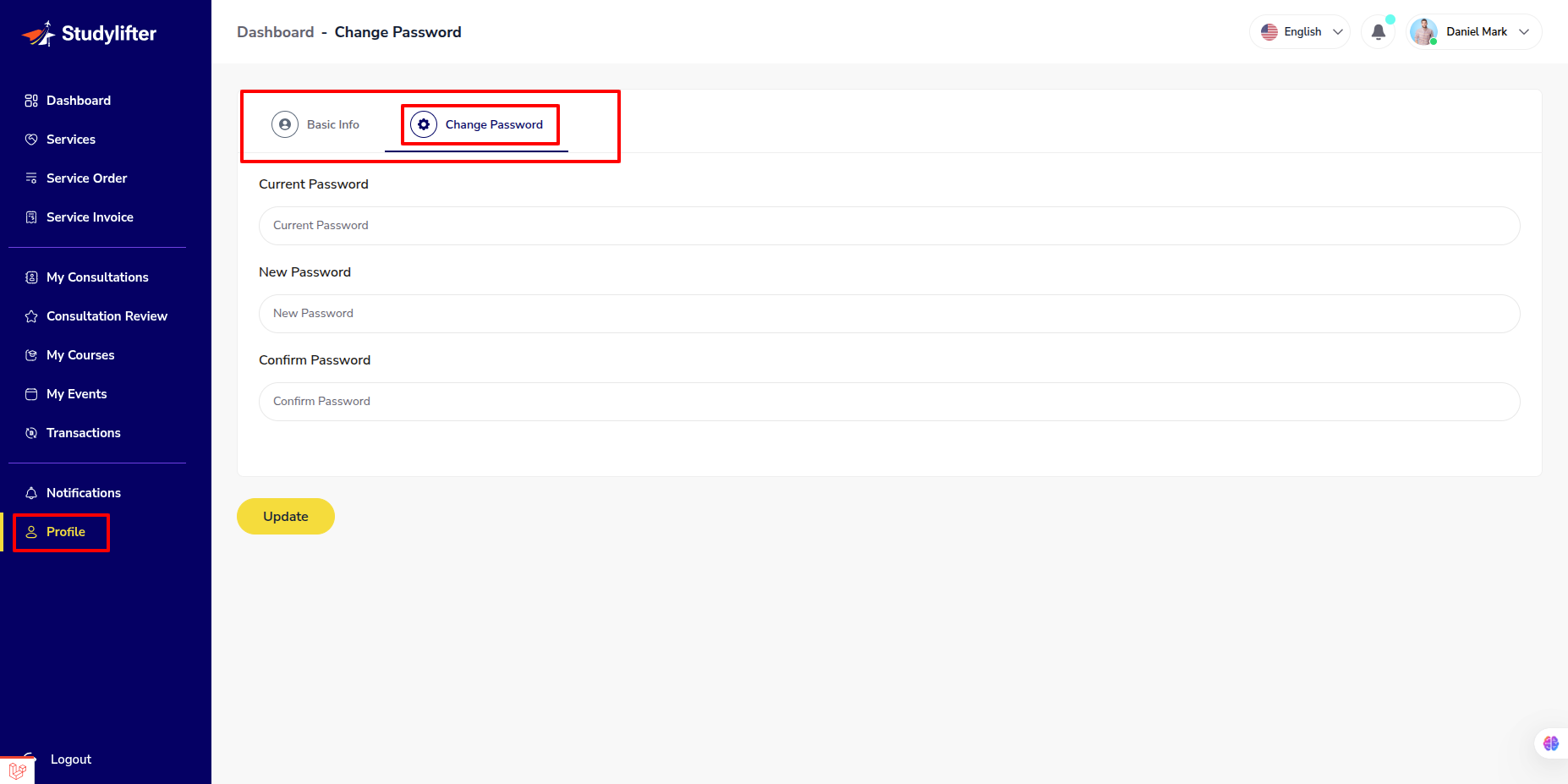
- Change Password